
Prepare A File Or Labelled Text
Booking creation permission is required to import. Check the active spreadsheet format shown on the import page before preparing your source.
Open The Import Page
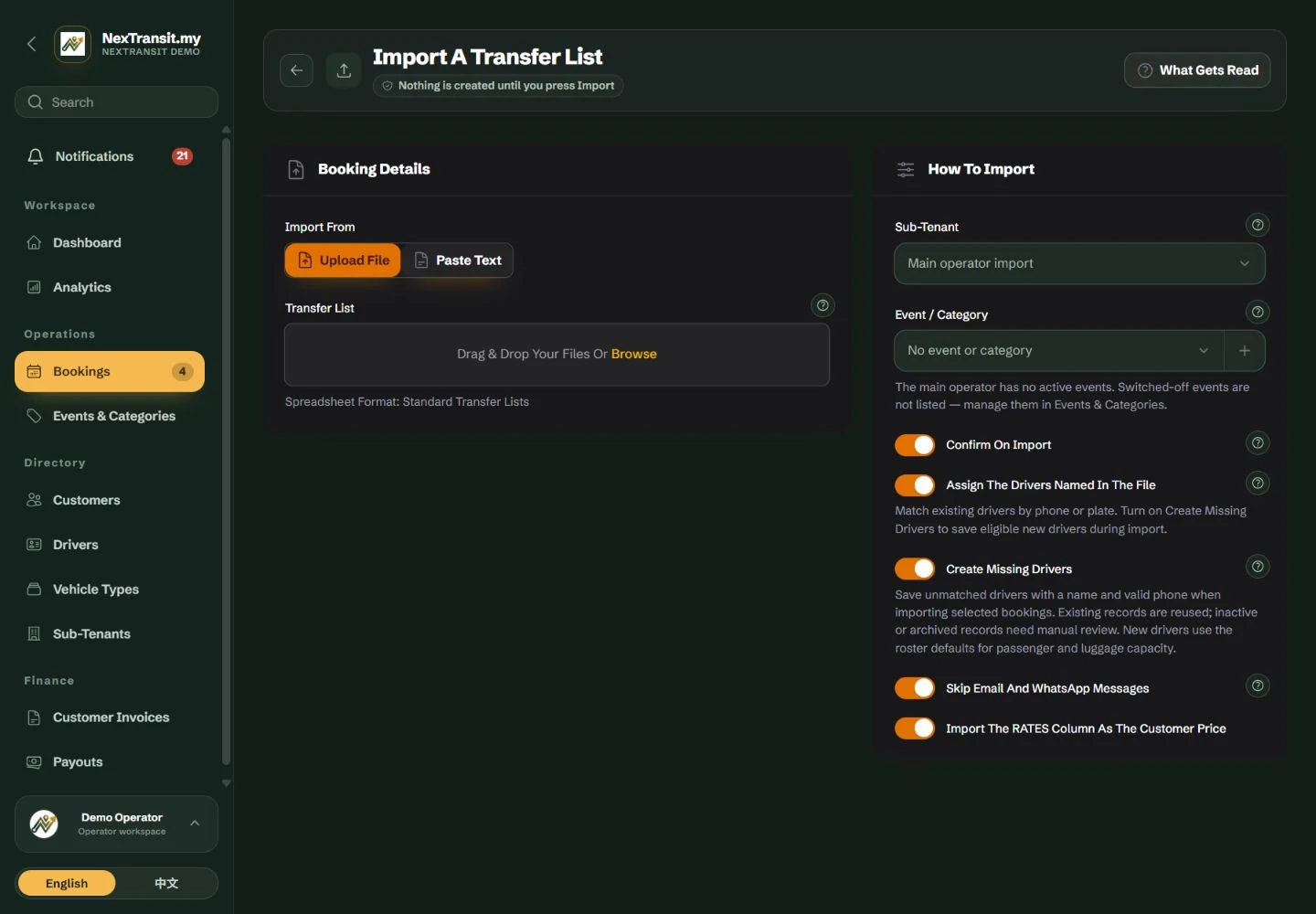
Go to Operations → Bookings and choose Import. Under Import From, select Upload File or Paste Text.
Upload A Supported File
For Upload File, choose an .xlsx, .csv, .ods or labelled .txt file in Transfer List. The upload limit is 8 MB. Standard transfer lists are read by their headings, so retain clear name, pickup, drop-off, date and pickup-time headings. Check grouped passenger rows carefully after parsing.
Prepare Pasted Text
For Paste Text, start each booking with Name: and use the supplied labels Contact:, Date:, Pick Time:, Pick up Location:, Drop off:, Flight no:, Passenger: and Luggage:. Separate bookings with a blank line. Enter dates as DD/MM/YYYY and times such as 09:30 or 9:30AM, in Kuala Lumpur time. Choose Review Text when ready.
Check Format-Specific Inputs
If Spreadsheet Format is TE Job Sheet, supply Schedule Year when the filename does not provide one unambiguous year, then choose Review Spreadsheet. Review weekday and date warnings. This format reads Driver; 2nd, 3rd and 4th are ignored, and a driver name alone is retained in the booking notes for manual assignment.
Labelled text is limited to 50,000 characters and 400 bookings. Contact and flight number can be omitted. Blank passenger and luggage counts default to one passenger and zero bags; verify those defaults against the actual trip.
A preview does not create bookings. Changing the file, pasted text or relevant parsing inputs invalidates the old preview; review the new source before importing.
Choose Ownership And Import Options
Set The Account And Event
Parent operators can choose Sub-Tenant or leave it as a main operator import. Choose an optional Event / Category belonging to that account. Use + to create an event only when your permissions allow it. These settings apply to the bookings in this import.
Decide Whether To Confirm
Review Confirm on Import. For parent operator imports, enabling either confirmation or driver assignment confirms the imported jobs. Turn both off if those jobs should stay Pending. A sub-tenant cannot change its confirmation setting: its parent operator controls whether the import needs acceptance.
Choose Driver Handling
Review Assign the Drivers Named in the File/Text and, for parent operators, Create Missing Drivers. Existing drivers are resolved from phone or plate details rather than a name alone. Missing driver creation needs usable name and phone details. Inactive or archived drivers are not reactivated by importing.
Check Messages And Prices
Review Skip Email and WhatsApp Messages, which is on by default. It suppresses those import messages, but a newly assigned driver can still receive the in-app bell notification and enabled phone push. Users with financial access can choose Import the RATES Column as the Customer Price.
Parent imports initially enable confirmation, driver assignment and missing-driver creation. Check the toggles for each import rather than assuming the defaults are suitable.
Imported rates use MYR because the source transfer list has no currency field. Check the currency and price before using an imported job for an SGD transaction.
When a sub-tenant's automatic confirmation is off, matched drivers are saved with the Pending jobs and assigned only when the parent operator accepts them, subject to current driver and vehicle eligibility.
Review Warnings And Select Bookings
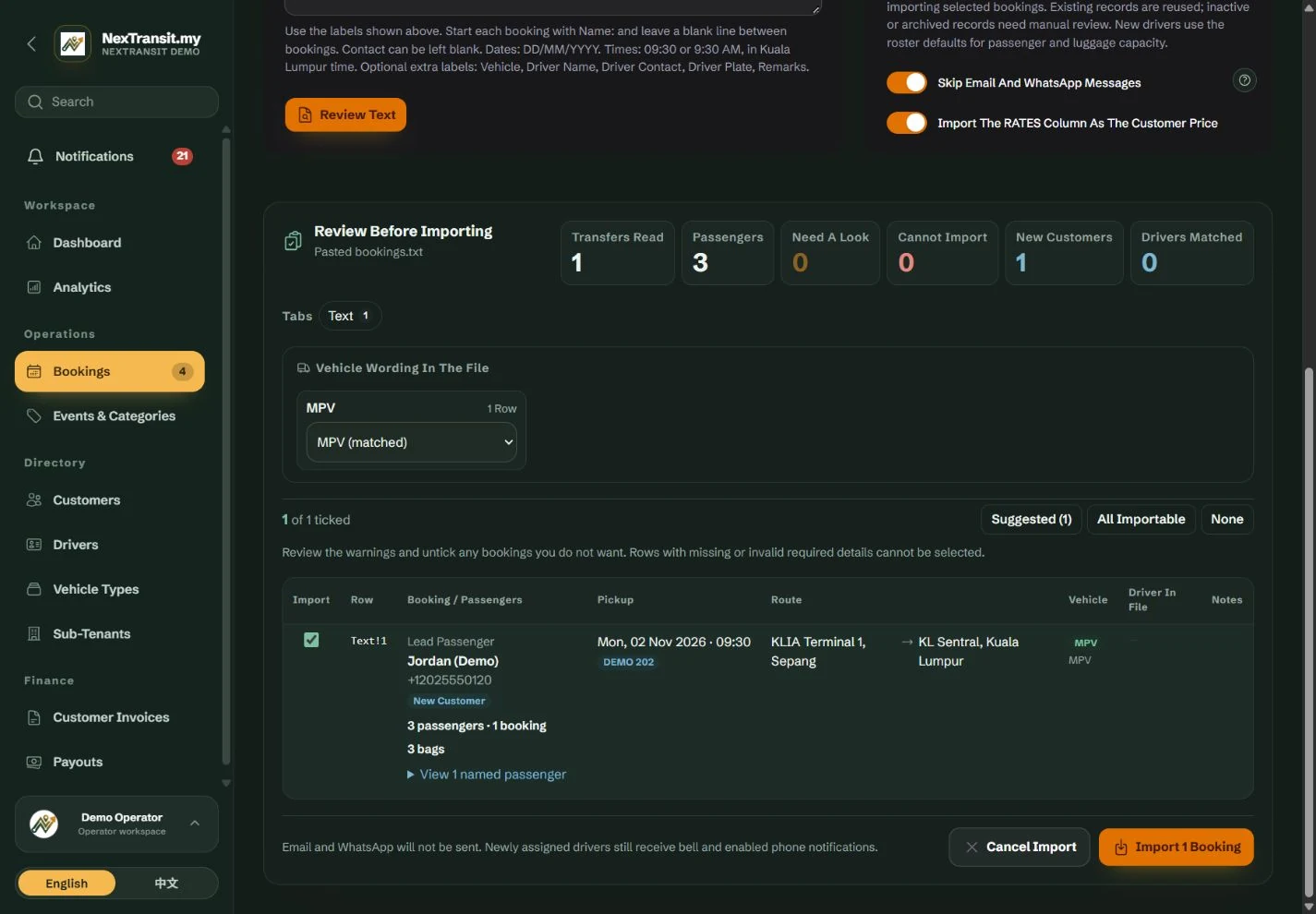
For .xlsx, .csv and .ods files, every importable row starts selected, including rows with warnings. Pasted text and .txt sources start with the Suggested selection. Review either selection before importing.
Check The Parsed Details
Review the pickup schedule, locations, contact, passenger total, luggage, driver and vehicle on each row. Expand the named passenger list where available. If a cell contains two pickup times, review the warning and correct the source if the first parsed time is not intended.
Review Flagged Rows
Check Already Booked, Already Has a Car, Hidden Tab, Cancelled in File and driver-matching warnings. Untick any row that should not become a booking. Suggested selects the safer suggested set; All Importable includes every row that passes required-field validation.
Resolve Vehicle Labels
Map an unrecognised vehicle label to the correct Vehicle Type where the review offers a mapping. For an ambiguous shared driver phone number or unavailable vehicle, check the assignment manually rather than assuming the match is correct.
Fix Blocked Rows At The Source
Rows missing required booking details cannot be selected. Correct their name, date, pickup time or locations in the source, then upload or review again. Check passenger totals against named travellers before continuing.
Duplicate and cancellation flags do not prevent a deliberate import. Leaving a flagged row selected can create another booking, so review the selection count before submitting.
Driver matching and availability are checked again when the import is saved. A preview match is not a guarantee that the driver can still be assigned.
Create Bookings Or Drivers
Import The Selected Bookings
After checking the selection and settings, choose Import followed by the selected booking count. Wait for the result notification and check the created-booking and assignment summary. Search the resulting jobs on the booking board; Imported From helps isolate the batch.
Create Only The Roster Records When Needed
A parent operator can use Create Drivers Only after reviewing a source. This creates eligible missing drivers from visible, uncancelled transfers without creating or changing bookings. It is useful when the bookings already exist. Review each created driver's vehicle and capacity settings afterwards.
Discard An Unwanted Preview
Choose Cancel Import to discard the source and preview and return to the booking board. There are no saved bookings to undo while you are still reviewing.
Handle A Failed Or Empty Import
If Nothing to Import appears, check that the source was reviewed and at least one valid row is selected. If asked to Review the Booking Details Again, re-run the review after the source change. For an unreadable file or text error, correct the format and retry; check the board before repeating an import whose outcome is uncertain.
Creating missing drivers does not update existing bookings or silently restore archived drivers. Review any Assignment Check warning and assign remaining jobs manually.
To correct a saved batch, use Imported From to locate it and review each booking's current status. There is no general one-click reversal of completed trips, messages or financial records.
Choose Which Bookings To Export
Prepare The Board
Open Bookings and set the tab, search and filters for the intended list. Choose Export to open Export Bookings.
Choose Format And Scope
Select File Format: Excel (.xlsx) or PDF (.pdf). Under Bookings to Include, Current list - tab, filters and search exports all matching pages, not just the rows currently visible. All bookings ignores the board filters but still respects your account access and excludes archived records.
Set Dates And Optional Details
Set Pickup From and Pickup Until or use a date preset. Dates cover whole Kuala Lumpur calendar days. Review Include Cancelled Transfers; it is normally off but enabled by default when exporting the Cancelled view. Users with financial access can choose Include Customer Prices.
Open The Preview
Choose Preview File. If Nothing to Export appears, broaden the date range, clear restrictive filters or choose All bookings. If the export is too large, narrow the range: a file can contain up to 5,000 bookings in Excel or 500 in PDF.
Last 7 Days and Next 7 Days include today. An empty start or end date leaves that side of the range open.
Transfer files are operational lists. Review prices and currency separately before treating an exported RATES column as a financial statement, especially when the selected bookings use different currencies.
Preview And Save The File
Check The Contents
In Preview Your Export, inspect the route, passengers, driver details and selected price information. Excel preview shows up to the first 300 rows; the saved file includes the full permitted selection. PDF preview shows the generated pages.
Save Or Download
Use Save File or Choose Location & Save when offered by your browser. Otherwise use Download File or Download Instead. Choose the destination and confirm the browser's save action.
Finish The Preview
After checking the saved file, choose Done to close the preview. Cancelling the browser's save-location dialog does not save a file; retry or use the download option if needed.
Exports contain passenger and contact information. Check the file and intended recipient before sharing it.
Keep Learning
Admin Workspace
Use the NexTransit.my admin workspace to review daily pickups, find bookings, follow driver acceptance and open the operational records available to your role.
Read The GuideBookings
Create and edit passenger bookings, assign drivers, record trip outcomes and prepare customer messages with the NexTransit.my booking workflow.
Read The GuideScreenshots show a demonstration workspace with sample records. Guides reviewed on 31 October 2026. Available actions depend on your role and account permissions.