
Open Your Notification Inbox
The notification bell keeps updates together inside your signed-in workspace.
Open Notifications
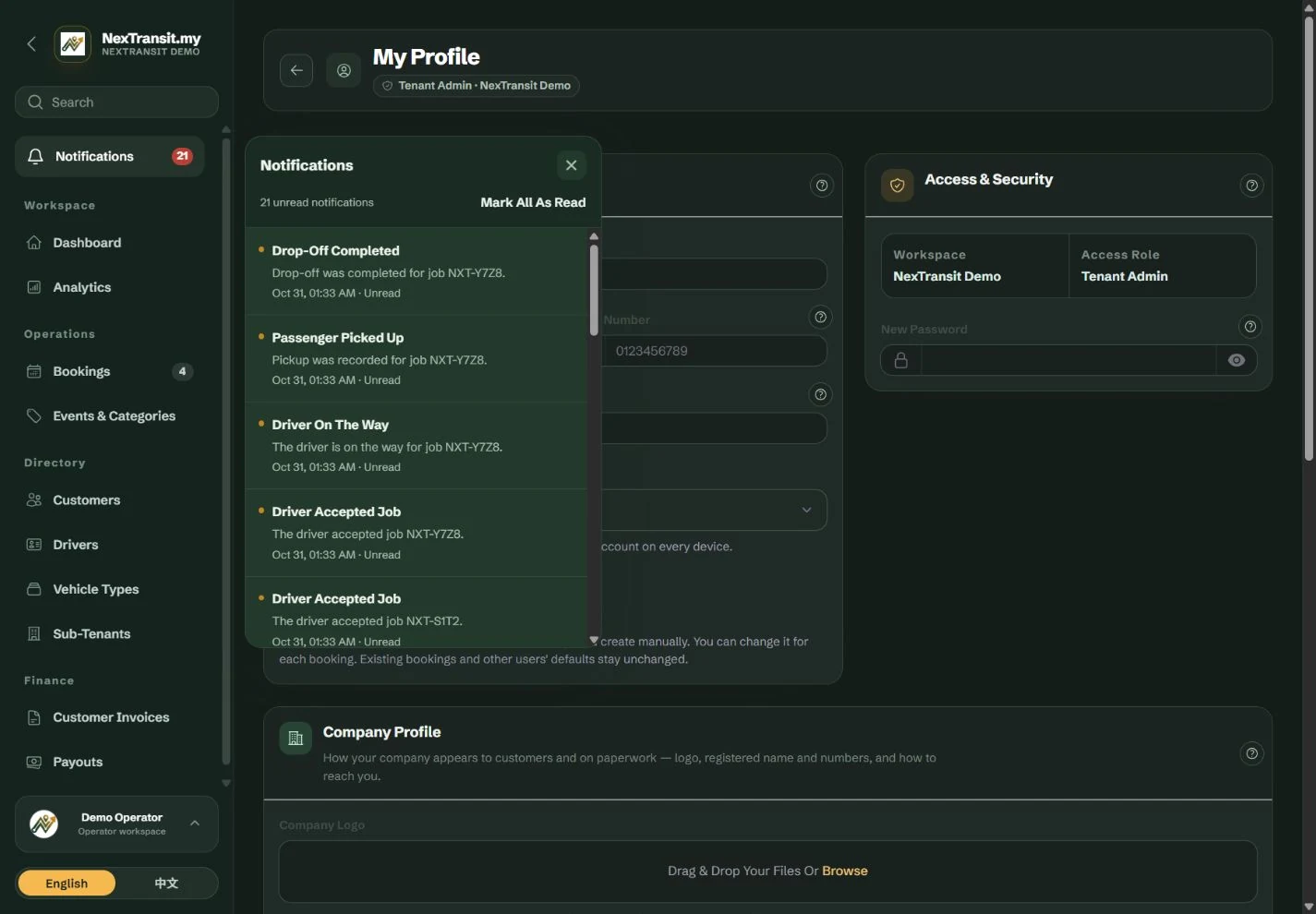
Select the notification bell. The panel shows your account's updates and unread count.
Read An Update
Review the notification’s message and booking reference. Follow its available link when you need to inspect the related record.
Check The Current Record
Review the booking’s current pickup details, assigned driver and status before acting. A notification describes an event; the booking may have changed again since that event.
Notification access follows your account and current permissions. Different users may receive different updates.
The inbox remains available inside the workspace when device alerts are off.
Interpret Booking Updates
Use the message to understand what changed, then open the booking when it needs your attention.
- New Booking: review the new record’s pickup time, route, passenger requirements and current status.
- Pickup Details Updated or Driver Changed: open the job to check the latest information before contacting the customer or driver.
- Driver Accepted Job: the driver has acknowledged the assignment. Acceptance does not mean the trip has started.
- Driver On The Way, Driver Arrived or Passenger Picked Up: review the recorded journey stage on the booking.
- Drop-Off Completed, Job Cancelled or No-Show Recorded: review the recorded outcome and any further action your role permits.
Only updates applicable to your account and access are shown. The list of message types does not mean every user receives every event.
Reading an alert does not confirm a booking, accept a driver’s job or record payment. Use the relevant record’s action to carry out that task.
Review Older And Unread Updates
Use read status to keep track of notifications you have reviewed.
Review Unread Messages
Check entries marked Unread and read the information before clearing the unread count.
Load Older Updates
Select “Load More” when it is available to see older entries.
Mark Reviewed Updates
Select “Mark All As Read” after reviewing the list. This updates notification read status; it does not change the linked bookings.
Return To Work
Close Notifications and continue on the booking board or related record.
“You’re all caught up” means no updates are currently shown in the inbox. Continue to use the booking board and dashboard to review outstanding work.
Resolve Missing Or Unavailable Updates
Start with the inbox message and the related booking’s current state.
- Notifications could not be loaded: select “Try Again”. Check your connection and reload the page if the problem continues.
- Your session has changed: refresh the page and confirm you are signed in to the intended account.
- A linked record is unavailable: return to the booking board and check your accessible records. The assignment, record state or your permissions may have changed.
- An expected device alert did not appear: open the notification bell and inspect the booking directly. A device alert is separate from the in-app inbox.
- You still cannot find an expected update: ask your administrator to check the account and record access.
Keep Learning
Admin Workspace
Use the NexTransit.my admin workspace to review daily pickups, find bookings, follow driver acceptance and open the operational records available to your role.
Read The GuideBookings
Create and edit passenger bookings, assign drivers, record trip outcomes and prepare customer messages with the NexTransit.my booking workflow.
Read The GuideScreenshots show a demonstration workspace with sample records. Guides reviewed on 31 October 2026. Available actions depend on your role and account permissions.