
Search The Customer Directory
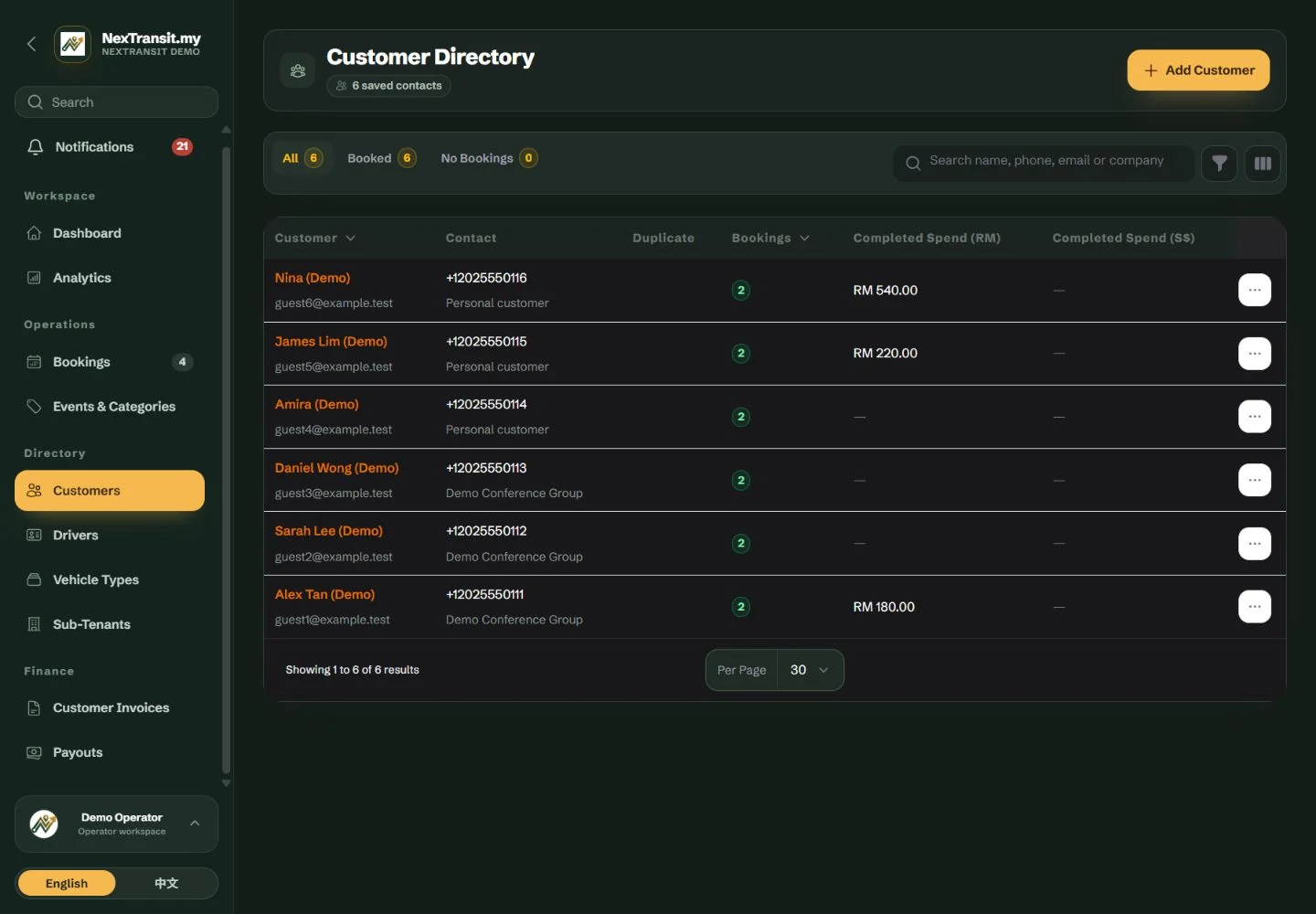
Open Directory → Customers. The Customer Directory is available to parent operator administrators and staff. Sub-tenant users work with contact details inside their accessible booking workflow instead.
Search Before Creating
Search by name, phone, email or company. Use All, Booked or No Bookings to narrow the list. Check existing contacts before adding another record for the same person.
Review A Duplicate Indicator
A Duplicate badge means another customer of this operator shares the phone number. Compare the names and context; a shared number can be intentional and the badge does not merge records.
Open The Customer
Open the customer to review Contact Details, Internal Notes and the Bookings history. Financial columns such as Completed Spend and booking Price are only visible to users with financial access.
Search and tabs can hide an existing record. Clear the search or change the tab before assuming a customer is missing.
Create A Reusable Contact
Start A Customer Record
Choose New Customer. In Contact Details, enter Full Name and Phone Number. Both are required for a new directory customer.
Add Optional Information
Enter Email Address and Company when known. In Notes & Context, use Internal Notes for private office context such as a billing contact or preferences.
Save And Check
Choose Create Customer, or Create & Add Another when entering several contacts. Check the saved spelling and contact details before reusing the customer on bookings.
Malaysian phone formats such as 0123456789 are accepted and normalised to an international format. Invalid phone numbers or email addresses must be corrected before saving.
Full Name, Email Address and Company support up to 255 characters; Phone Number supports up to 32. Internal Notes are not shown to customers or drivers.
Use A Contact On A Booking
Choose The Account First
When creating a partner booking as a parent operator, select Sub-Tenant first. The customer selected for the booking must belong to the same account context.
Select Or Add The Contact
In the booking's Customer Details, search for the customer by name, phone or email. Select it to populate the contact details, or use + to add a customer from the booking form. Review Contact Name, Contact Phone and Contact Email on the booking.
Record Travellers Separately
Use Passenger List for the people travelling when they differ from the contact. Enter Passenger Name and optional phone for each named traveller, then set Passengers to the total travelling, including unnamed companions.
Choose The Intended Message Recipient
When preparing WhatsApp Customer, select the intended contact or passenger if more than one phone is available. Email Customer uses the booking contact email. Check the preview rather than assuming every traveller will receive a message.
A directory customer is a reusable contact. A booking keeps its own contact details, which can describe an organiser rather than a passenger.
The booking form permits a contact name without a phone number, even though creating a new directory customer requires a phone. Such a booking cannot prepare a WhatsApp message for that contact until a valid number is available.
Update Details And Review Past Bookings
Correct The Customer Record
Open the customer, edit the contact or internal notes and save the form. For an existing customer with a phone, a replacement must remain a valid non-empty phone number.
Check Affected Future Bookings
Review the contact fields on existing bookings separately. They keep booking-specific details; do not assume changing the directory contact updates every saved trip or message.
Review The Booking History
Use Bookings on the customer record to inspect references, Pickup At and Status. Users with financial access also see Price with the booking's currency. Make operational changes from the relevant booking rather than treating this read-only history as the booking editor.
Archive Or Restore A Customer
Archive A Contact You No Longer Use
Use Delete from the customer actions and review the confirmation. This archives the customer while preserving its record and booking history.
Restore A Returning Contact
Find the customer using the archived-record filter and choose Restore. Check their current contact details before creating another trip.
Respect History Restrictions
Permanent deletion is different from archiving. It is refused when bookings reference the customer because those bookings retain a permanent customer link.
Archiving a customer does not cancel its bookings. Existing booking details and printed job sheets retain the saved contact information.
Keep Learning
Admin Workspace
Use the NexTransit.my admin workspace to review daily pickups, find bookings, follow driver acceptance and open the operational records available to your role.
Read The GuideBookings
Create and edit passenger bookings, assign drivers, record trip outcomes and prepare customer messages with the NexTransit.my booking workflow.
Read The GuideScreenshots show a demonstration workspace with sample records. Guides reviewed on 31 October 2026. Available actions depend on your role and account permissions.