
Understand The Access Boundaries
An Event / Category groups related bookings. Sub-Tenant identifies an existing client or partner account. Check both when finding or filing a transfer.
- Parent office teams can work across the records their role permits. Partner users see only their account and accessible events; financial fields are not shown to partner users or Tenant Staff.
- A partner booking with an Event / Category is visible to the users assigned to that event. A booking with no event is available across that partner account. Parent operator access remains.
- The actions shown depend on your existing permissions. If a booking or event is unavailable, check the account and current access rather than creating a duplicate.
- Bookings, imports and amendments keep their existing approval rules. A matched driver on a Pending partner import is not assigned until the parent operator accepts the import.
Choose the intended account and event before saving. An event name alone does not make its bookings accessible to every partner user.
Find Bookings For An Existing Partner
Open The Booking Board
Go to Operations → Bookings. Clear any old search or filters if the list is narrower than expected.
Filter By Partner And Event
Use Sub-Tenant to select the existing partner account, then Event / Category to narrow the group. Search by reference, contact or route and check the pickup date range.
Review The Booking
Open the transfer and check its account, event, passengers, pickup schedule and driver. Use the normal booking actions available to your role.
File New Transfers In The Same Group
For New Booking or Import, choose the existing Sub-Tenant before choosing its Event / Category. Review the account and event before saving or importing the selected transfers.
Partner users do not choose another partner account. They work within their own account and the events available to them.
Add An Event Or Category
Start An Event
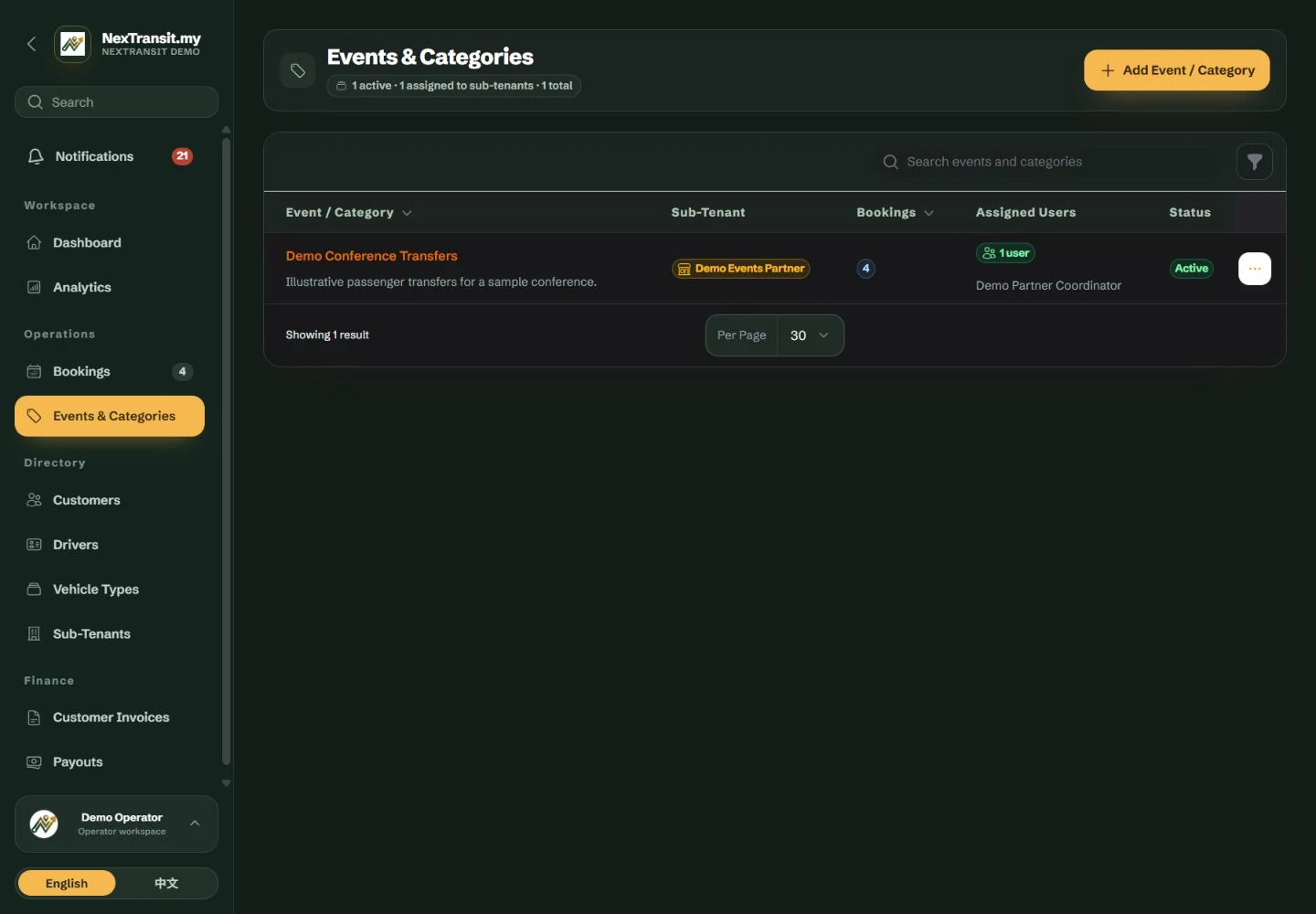
Open Operations → Events & Categories and choose Add Event / Category. Enter Event / Category Name. Names must be unique across the operator workspace, including other sub-tenant accounts and inactive events.
Choose The Existing Account
For a parent operator, select an existing Sub-Tenant or leave Main operator / unassigned. If the form requires Assigned Sub-Tenant Users, choose the existing people responsible for the event. If the required list is empty, ask your administrator to check the account before continuing.
Separate Public And Internal Wording
Use Internal Description for private context. On Behalf Of (Customer Message) is optional customer-facing wording: enter only the represented organisation's name when it should appear in the customer message. Leave it blank to omit it.
Make The Event Available
Keep Available for New Bookings on, then choose Create Event / Category. Select the event on new bookings or imports that belong to the group.
Create An Event During Intake
Where available, use + beside Event / Category on a booking or import form. First choose the correct account. Parent operators creating a partner event must select its users; a sub-tenant user's own new event is assigned to that user automatically.
A partner user creates events within their own account when permitted. The new event is automatically assigned to that user.
If the name is already in use, select the existing event or choose a different name. It may be inactive or belong to a different account; parent operators can check Events & Categories to resolve that context.
Update Or Retire An Event
Update Event Details
Find the event in Events & Categories and choose Edit Category. Correct its name, internal description or public On Behalf Of wording, then choose Save Changes.
Keep Ownership Consistent
Once bookings use an event, its Sub-Tenant cannot be changed. Create an appropriately owned event for future bookings rather than trying to move an existing event across account boundaries.
Retire An Event
Turn off Available for New Bookings when the event should no longer appear in new selections. Existing bookings retain it. Delete Category is only suitable for an unused category; even archived bookings prevent deletion.
If an already open record stops being available, reload the workspace and check your current account and event access rather than assuming the booking was deleted.
Review Proposed Booking Changes
A partner amendment is a proposed change. The saved booking stays unchanged until an authorised parent administrator approves it.
Find Pending Requests
Open the Amendments tab in Bookings or open the affected booking. Choose Review Amendment when the action is available.
Compare Before Deciding
Review the original, proposed and current values. Add an optional note, then choose Approve Changes, Reject Changes or Review Later.
Resolve A Changed Booking
If the booking has changed since the request, reject the outdated request and ask the partner to reload the current booking before submitting a new one.
One request can be pending at a time. Approval applies the proposed details; rejection keeps the current booking. Only an active parent administrator can review the request.
Keep Learning
Admin Workspace
Use the NexTransit.my admin workspace to review daily pickups, find bookings, follow driver acceptance and open the operational records available to your role.
Read The GuideBookings
Create and edit passenger bookings, assign drivers, record trip outcomes and prepare customer messages with the NexTransit.my booking workflow.
Read The GuideScreenshots show a demonstration workspace with sample records. Guides reviewed on 31 October 2026. Available actions depend on your role and account permissions.