
Set The Report Scope
Open Workspace → Analytics. Direct company users can view operational analytics; Finance is restricted to users with financial access. Partner users cannot open the company Analytics page.
Choose A Period
Open “Report Filters” and set “Period” to “Last 30 days”, “Last 90 days” or “Year to date”. Historical reporting uses the booking's pickup date in the workspace timezone.
Narrow The Records
Use “Event / category”, “Account”, “Driver” and “Vehicle type” to focus the report. Archived drivers remain available for historical analysis and are labelled accordingly.
Choose A View
Use “Report View” to select Overview, Operations, Drivers, Guests & Accounts, Data Quality or Finance when available.
Review The Scope
Read the displayed date window and active filters before comparing totals. Use the “Clear” filters control to remove dimension filters; choose Period separately when changing the date window.
Historical analytics includes archived bookings. Future demand views exclude archived bookings.
Upcoming demand and Capacity watch use future bookings from now. Their dimension filters apply, but they do not use the selected historical period.
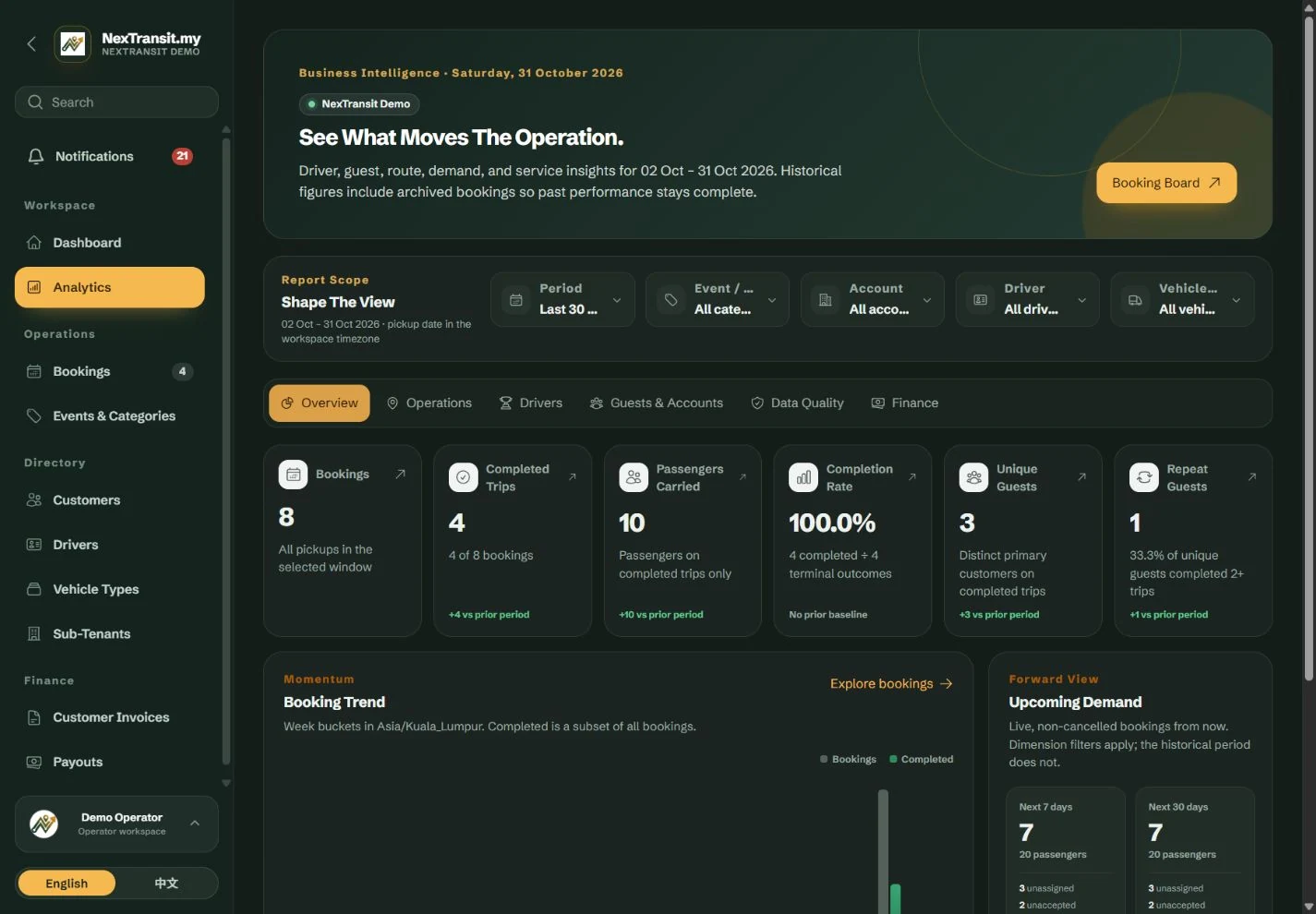
Review Activity And Demand
Overview helps explain changes in activity. Operations shows where and when passengers are travelling.
Read Overview
Review headline performance and the booking trend. Completed trips are a subset of all bookings. Prior-period comparisons use the immediately preceding window of equal length with the same filters.
Check Upcoming Work
Review Upcoming demand for the next 7 and 30 days, including unassigned and unaccepted work. Use “Plan upcoming work” to investigate the bookings behind the figures.
Explore Operations
Review Top destinations, Top pickup places, Most travelled routes and Peak pickup patterns. These demand views exclude cancelled bookings; carried-passenger counts come from completed trips.
Investigate A Pattern
Use the available booking links to open the corresponding records. Review the pickup dates and filters on the booking board before taking operational action.
Completion rate uses completed, no-show and cancelled trips as terminal outcomes. It is not completed trips divided by every future and unfinished booking.
Location labels are grouped using their saved text. Different spellings or aliases may appear separately. A report grouping is not a map-based validation of the place.
Interpret Driver And Guest Metrics
Rankings use completed trips, while rates show their own sample sizes. Read both before comparing people or accounts.
- Drivers: the leaderboard ranks completed trips only. Equal completed-trip totals share a rank. Review Terminal outcome, Acceptance, Arrival coverage and Arrived by pickup alongside their denominators.
- Acceptance eligible: assigned, in-progress, completed and no-show bookings contribute to the eligible sample.
- Arrival coverage: completed and no-show bookings with a reported arrival time. Missing arrival reports reduce coverage.
- Arrived by pickup: the recorded operational arrival time is at or before pickup. A driver or operator can record it; it is not independently verified punctuality.
- Guests & Accounts: a guest is the primary customer record on a completed trip. Co-passengers contribute to party size, not to unique-guest counts.
- Repeat guests: the same primary customer record appears on at least two completed trips within the selected window.
- Account demand: non-cancelled bookings are ranked by booked passengers. Parent workspace means no sub-tenant account is attached.
“No sample” means there is no eligible denominator. It should not be read as a zero-performance score.
Use View driver, View guest or the available booking links to inspect the underlying record and completed trips.
Investigate Data Quality
Data Quality identifies missing or inconsistent inputs that can affect operations and report coverage.
Review The Checks
Look for missing drivers, arrival reports, categories, vehicle types, pickup or drop-off information and customer contact details. Financial users can also inspect missing customer prices and driver fees.
Open The Records
Use the relevant “Review” action or “Review scoped bookings” to inspect the affected bookings. Historical drill-downs include archived and cancelled records where needed to match the report.
Correct The Source
Review the booking or directory record and correct only information you can verify. Return to Analytics to check the effect after the report refreshes.
One booking can appear in multiple checks. Adding all check counts together does not produce a unique total of affected bookings.
Duplicate phone groups are a signal to review customer records; they do not prove that every shared number is a duplicate person.
Analytics shows arrival-report coverage without exposing raw GPS coordinates.
Read Financial Totals
Finance reports completed pickups in the selected window. MYR and SGD appear separately and are never converted or combined.
- Recognised revenue: saved customer prices on completed trips where a price is present. This is the report's booking-price measure, not a total of collected bank payments.
- Driver fees: recorded driver fees for completed trips in scope.
- Gross margin: customer price minus driver fee only where both values are present.
- Outstanding quoted: the full quoted customer price on completed bookings not marked paid. Recorded deposit status does not subtract a deposit amount.
- Awaiting payout: completed driver fees not yet attached to a payout item. A pending payout batch already has payout items and therefore leaves this analytics measure.
- Coverage gaps: completed jobs missing a price or driver fee are excluded from the corresponding amount samples. Review these gaps alongside the totals.
Driver Earnings uses a different Awaiting Payout definition: completed fees remain awaiting until a payout is marked paid, including fees in pending batches. Use Payouts to investigate the difference.
The report's financial labels describe saved booking records. Check the underlying bookings, invoices and payout vouchers when reconciling an amount.
Resolve Unexpected Results
Check scope and definitions before treating a difference as missing data.
- An empty report: widen Period, clear dimension filters and check whether pickups fall within the displayed dates.
- A number differs from today's board: Analytics uses its selected pickup window and includes archived history. The daily board can have different status and archive filters.
- A financial amount seems low: check completion status, currency and the missing-price or missing-driver-fee coverage gaps.
- A recent correction is not visible yet: allow the report to refresh, then reopen the view. Analytics may briefly show recently cached results.
- Finance is unavailable: check your access role. Operational staff can use the non-financial report views.
Keep Learning
Admin Workspace
Use the NexTransit.my admin workspace to review daily pickups, find bookings, follow driver acceptance and open the operational records available to your role.
Read The GuideBookings
Create and edit passenger bookings, assign drivers, record trip outcomes and prepare customer messages with the NexTransit.my booking workflow.
Read The GuideScreenshots show a demonstration workspace with sample records. Guides reviewed on 31 October 2026. Available actions depend on your role and account permissions.