
Check Before You Create
Open Finance → Customer Invoices as an active company Tenant Admin. Staff and partner users cannot access this page.
- Select between 1 and 100 bookings with the same currency and the same sub-tenant account. Direct bookings can be combined with other direct bookings.
- Select either unpaid bookings or fully paid bookings. Do not mix payment states on one invoice.
- Each booking needs a valid, non-negative customer price. Cancelled bookings, deposit bookings, bookings with no payment due and bookings on an existing active invoice are not eligible.
Invoice amounts use saved customer prices. The invoice does not add a separate tax or fee.
A deposit is a payment-status flag; the system does not store the deposit amount. Reconcile the booking's payment status before including it on an invoice.
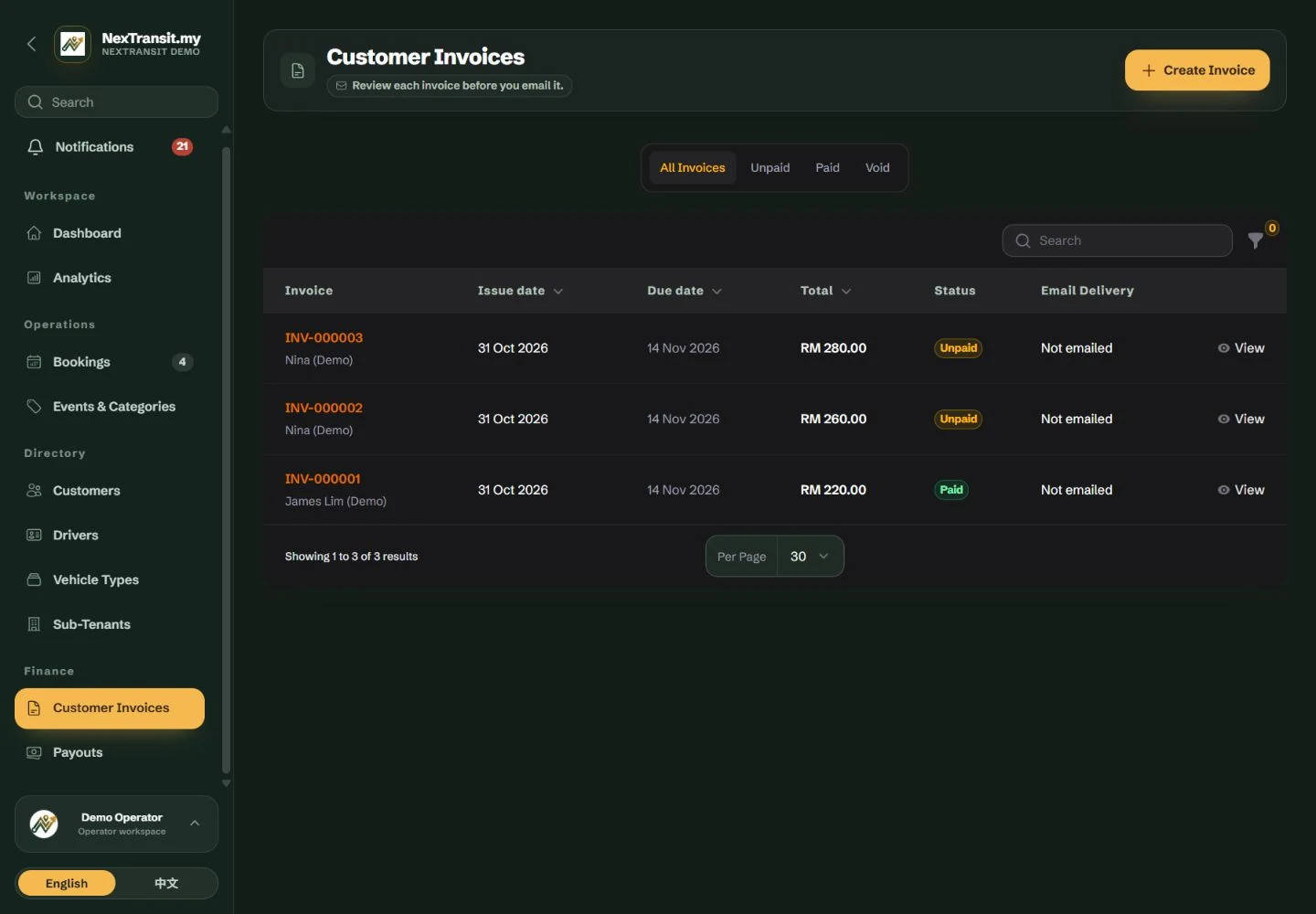
Create An Invoice
Creating the invoice saves it for review. Email is a separate action.
Start The Invoice
Select “Create Invoice” from Customer Invoices. You can also use “Create Invoice for Selected Jobs” from an eligible booking selection.
Choose The Billing Account
Use “Bill To Sub-Tenant” when billing a partner company. Otherwise leave “Customer / Manual Billing” selected. Choose this first: changing the sub-tenant clears selected jobs and billing details.
Select The Bookings
Use “Event / category”, “Customer” and “Currency” to narrow the choices. In “Bookings to invoice”, search by reference, customer or location and select the jobs. These filters preserve your existing selection, so review the full selected list.
Review Prices And Recipient
Check “Selected Jobs”, each customer price and the total. Complete “Bill to name or company”. Add “Billing email”, “Billing address” and “PO / billing reference” where needed. Billing email is optional at creation.
Set Dates And Save
Confirm “Issue date”, “Due date” and any “Invoice notes”. The due date must be on or after the issue date. Select “Create Invoice” to open the saved invoice.
The form initially proposes an issue date of today and a due date 14 days later. Review these dates for the invoice you are issuing.
If any selected booking becomes unavailable, review the complete selection and try again. The invoice is not created from only part of an invalid selection.
Fully paid bookings produce a paid invoice. A zero-value invoice is also recorded as paid.
Review, Download And Email
Open an invoice from the list to review its saved billing details, booking lines and total.
Review The PDF
Select “Download PDF”. Check your company identity, recipient, dates, booking prices and payment instructions before sharing it.
Confirm The Recipient
Select “Email Invoice”. Review or enter “Send to email”; the saved billing email is offered when available.
Send The Invoice
Confirm “Email Invoice”. The email includes the invoice PDF as an attachment. Check “Email history” for the recorded attempt and delivery state.
Sending again creates another email. Check the existing history before resending.
Issued invoices retain their saved company and billing details. Those saved details cannot be edited directly; review the PDF before sharing it.
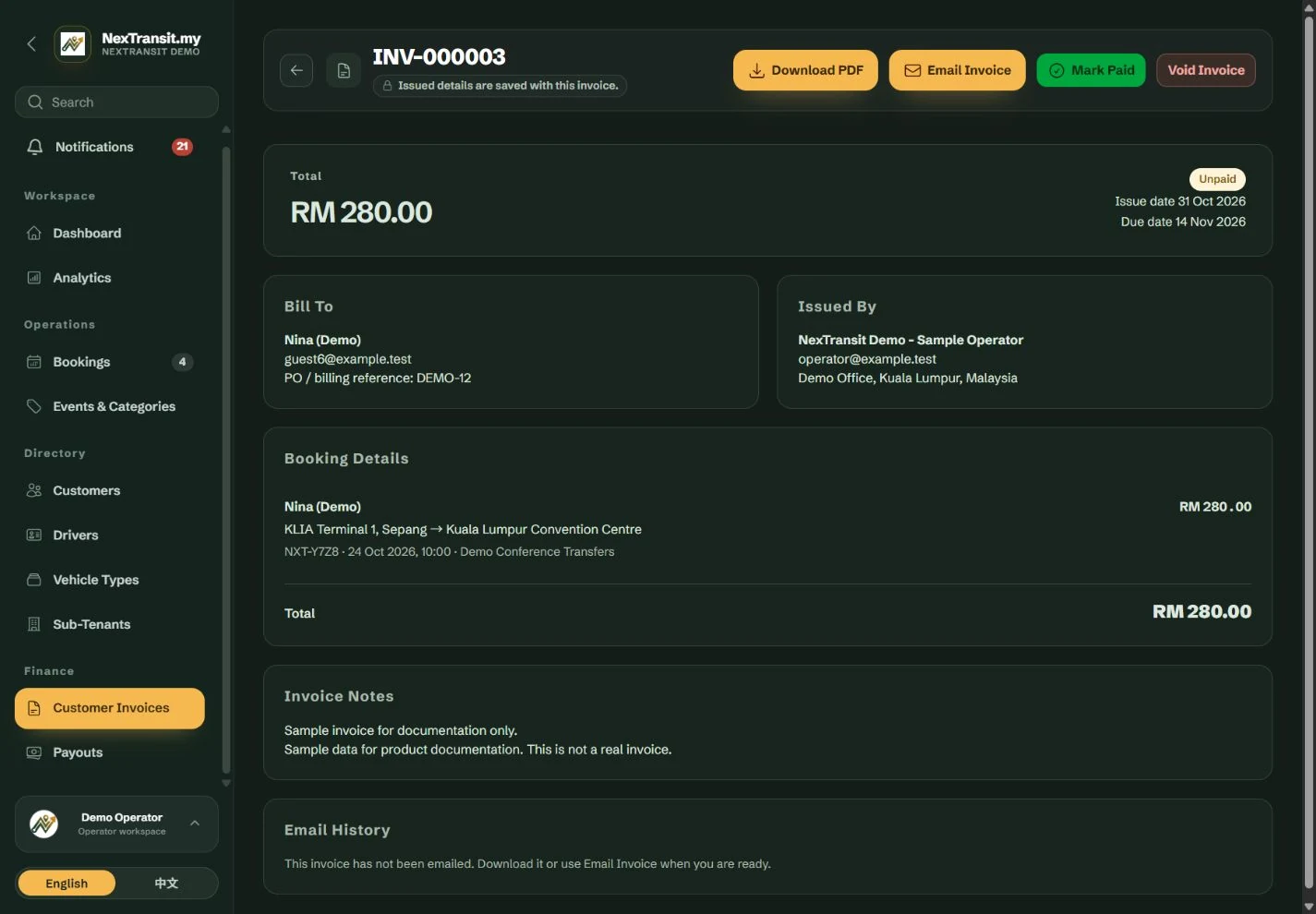
Record Full Payment
Use Mark Paid only after you have confirmed receipt of the full invoice amount.
Open The Unpaid Invoice
Find the invoice using its reference or billing details, or filter Customer Invoices by “Unpaid”.
Confirm Receipt
Select “Mark Paid”, enter a “Payment reference” if needed and confirm the action.
Check The Result
The invoice becomes “Paid” and all linked bookings are also marked paid. Review the payment record on the invoice.
Mark Paid records your confirmation; it does not collect money from the customer.
If a linked booking's price, currency or payment eligibility has changed, review the difference and void/reissue the unpaid invoice before recording payment.
A paid invoice has no editable-payment or void action here. Its linked customer price, currency and paid status cannot be corrected from the booking screen. Check carefully before confirming.
Void An Unpaid Invoice
Void an unpaid invoice when it must be replaced. The void record remains in invoice history.
Resolve Pending Email
If an email is queued, use “Cancel Pending Email”. If sending has already begun, wait for its result or follow the stalled-email procedure.
Record The Reason
Select “Void Invoice”, complete “Reason for voiding” and confirm.
Prepare A Replacement
Correct the relevant booking details and check the billing information, then create a new invoice. The voided invoice's bookings are released for a replacement, subject to the normal eligibility rules.
A void invoice cannot be emailed. Copies already sent to recipients cannot be recalled.
Bookings included in invoice history cannot be permanently deleted. Archive them when appropriate to preserve the invoice record.
Resolve Missing Jobs And Email Problems
Use the selection rules and the latest email-history entry to identify the next action.
- A job is missing from the picker: check its currency, account, payment state, price, cancellation status and whether it already belongs to an active invoice.
- Email is Queued: it has not started sending. “Cancel Pending Email” is available while it remains queued.
- Email is Sending: do not resend immediately. Sending cannot be cancelled once it has started.
- Email is Failed: review the history and recipient before using Email Invoice again.
- Email has been Sending for at least 10 minutes: “Review stalled email” becomes available. Check with the recipient first, then use “Mark delivery unconfirmed” if appropriate. This records the interrupted attempt without sending another email and permits a deliberate resend or invoice void.
Keep Learning
Admin Workspace
Use the NexTransit.my admin workspace to review daily pickups, find bookings, follow driver acceptance and open the operational records available to your role.
Read The GuideBookings
Create and edit passenger bookings, assign drivers, record trip outcomes and prepare customer messages with the NexTransit.my booking workflow.
Read The GuideScreenshots show a demonstration workspace with sample records. Guides reviewed on 31 October 2026. Available actions depend on your role and account permissions.