
Find The Booking You Need
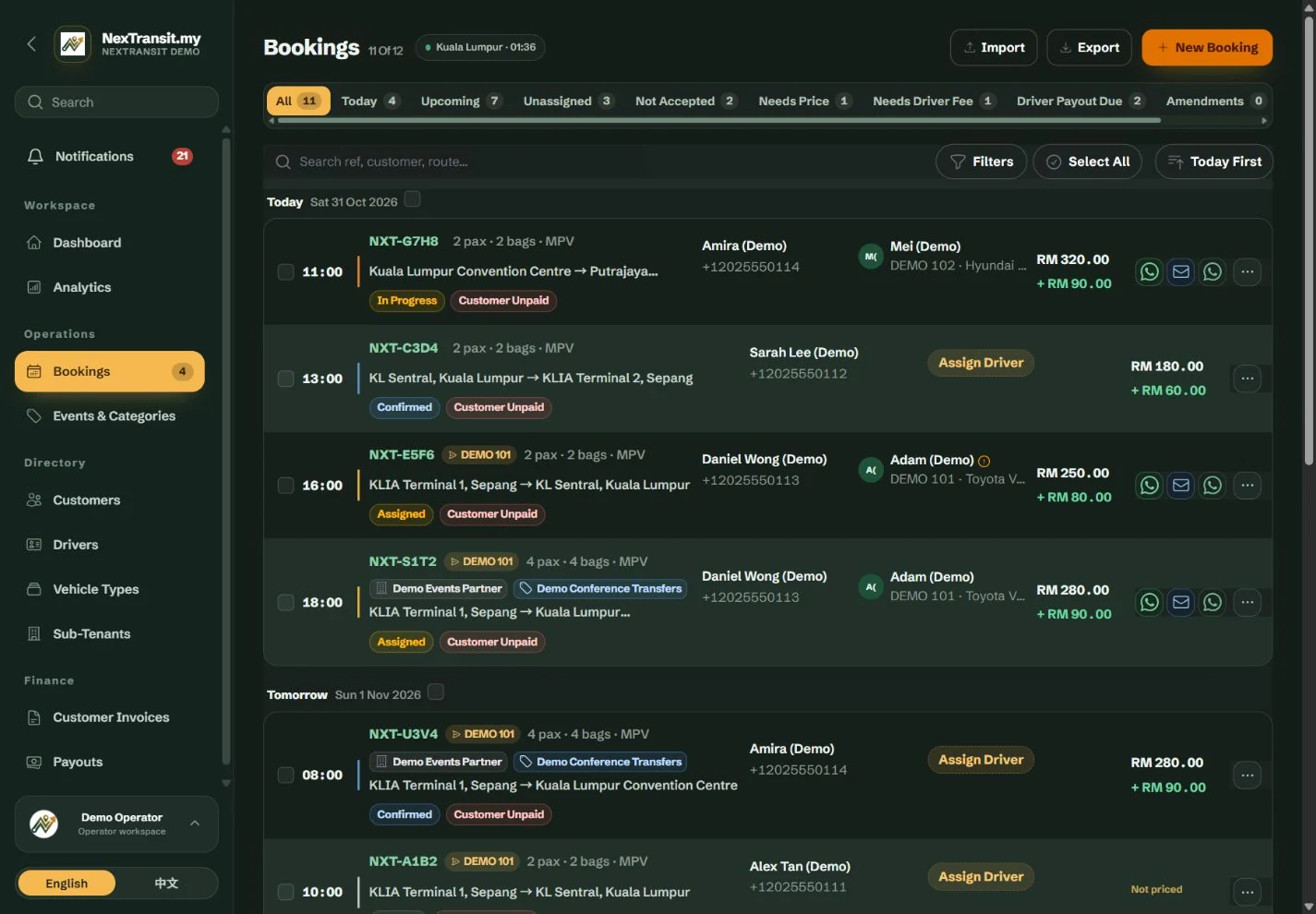
Open Operations → Bookings. The available tabs and controls depend on your role and account permissions.
Choose A View
Use All, Today or Upcoming for the schedule. Unassigned helps find jobs still needing a driver; Not Accepted helps follow up on assigned jobs without a driver acknowledgement. Cancelled opens cancelled transfers.
Search And Filter
Search by reference, customer or route. Use the filters for pickup dates, Booking Status, Driver / Assignment, Vehicle Type, Event / Category or Imported From. Parent operators can also filter by Sub-Tenant. Clear the search and filters if an expected booking is missing.
Open The Record
Open the booking to review its contact, passengers, route, assigned driver and history. On smaller screens the board uses cards and action menus; the same booking record underlies both layouts.
Pickup schedules use Kuala Lumpur time (MYT, UTC+8). The navigation badge counts today's outstanding open jobs, so it can differ from the Today tab.
Needs Price, Needs Driver Fee and Driver Payout Due are financial views. Tenant Staff and sub-tenant users do not receive financial fields or actions.
Create A Booking
Have the contact name, pickup date and time, both locations, passenger total and luggage count ready. Driver assignment happens after the booking is confirmed.
Start A New Record
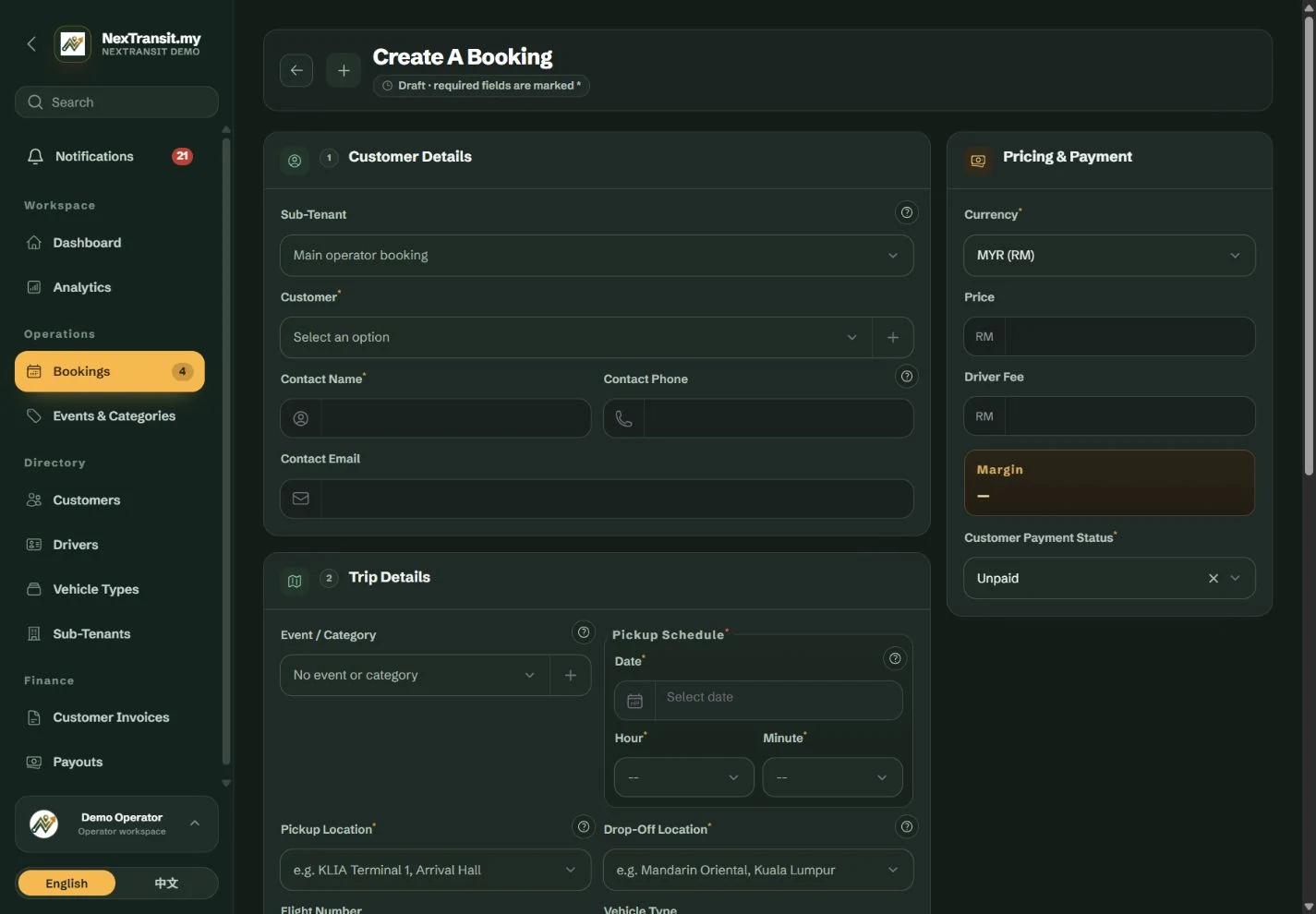
Choose New Booking. If you are a parent operator filing the trip for a partner, choose its Sub-Tenant before selecting a customer or Event / Category. Leave Sub-Tenant blank for a main operator booking.
Add The Booking Contact
In Customer Details, search the customer picker by name, phone or email. Select an existing customer or use + to add one. Check the populated Contact Name, Contact Phone and Contact Email; these editable fields are the details used for this booking.
Set The Pickup And Route
In Pickup Schedule, select Date, Hour and Minute using the 24-hour clock. In Trip Details, enter Pickup Location and Drop-Off Location. Search a previous location or select the new address you have typed. Add Flight Number and Vehicle Type when applicable.
Record The Travellers
Set Passengers to the total number travelling and Luggage to the bag count. In Passenger List, choose Add Passenger for each named traveller, then enter Passenger Name and Phone (Optional). The booking contact can be an organiser who is not travelling.
Add Instructions And Prices
Use Driver-Visible Remarks for pickup instructions or traveller requirements. Use Internal Remarks for private office context. If the trip includes a planned wait, enable Include Waiting Time and enter Waiting Time (Minutes). Users with financial access can complete Pricing & Payment, including Currency, Price, Driver fee and payment statuses.
Save The Booking
Choose Create Booking. The system creates a new reference and a Pending booking. Review the saved record before confirming and assigning it.
A Customer selection, Contact Name and both locations are required. Contact phone and email may be blank, but supplied values must be valid. Each named passenger needs a name; passenger phone numbers are optional.
Passengers must be 1–255 and cannot be lower than the number of named passengers. Luggage must be 0–255. Planned waiting time must be 1–1,440 minutes when enabled; recording it does not calculate an additional charge.
New bookings cannot use a pickup date before today in Kuala Lumpur. Editing a historical booking preserves its existing date as an allowed minimum.
Event / Category is optional. For a sub-tenant booking, leaving it blank makes it available across that account; selecting an event restricts it to the assigned users. Confirm that this is the intended access before saving.
Edit Details Or Duplicate A Trip
Edit An Existing Booking
Open the booking and choose Edit Details. Make the corrections, then choose Save Booking or Save & Keep Editing. Use View Summary to return to the booking details.
Make A Related Booking
Use More → Duplicate when you want a new booking based on an existing itinerary. The copy gets a new reference and starts Pending without a driver, driver acknowledgement, cancellation state, payment status or flight number. Review its pickup date, route, passengers, flight number and prices before using it.
Print A Job Sheet
Use Print Job Sheet from the booking actions to open the printable sheet. Check the record before printing or saving a PDF with your browser's print controls.
Financial values may be locked while the booking belongs to a payout batch. Resolve the relevant payout workflow rather than creating another booking to bypass the lock.
A sub-tenant with Allow Amendment Requests enabled sees Request Changes instead of a direct edit. Its proposed changes require approval, as described below.
Confirm And Assign A Driver
Confirm The Job
On a Pending booking, choose Confirm and review the confirmation. A customer price is not required to confirm. If an imported booking has a saved matched driver, confirmation may also assign that driver when the driver and vehicle are still eligible.
Select A Driver And Vehicle
Choose Assign Driver. Search by driver name, phone, plate or vehicle, select the active driver, and choose Assigned Vehicle when the driver has multiple vehicles. Confirm the assignment. The booking saves the vehicle details with that assignment.
Review Any Warnings
Check warnings about time off on the pickup date, current duty status, passenger or luggage capacity, and nearby pickup times. These warnings help you review the decision; they do not automatically resolve scheduling conflicts.
Check Acknowledgement
Look for Accepted, Opened, Not Accepted or Not Opened Yet in the driver briefing. Opening a job does not mean the driver accepted it. Use Remind Driver when follow-up is needed.
Reassign Before The Trip Starts
Use Reassign Driver on a Confirmed or Assigned booking to change the allocation. Reassignment clears the previous driver's opened and accepted states, so the new driver must acknowledge the job. Driver assignment is locked after the trip starts.
An inactive or archived driver cannot receive a new assignment. A driver who is off duty or on booked time off can still be offered with a warning; check availability with the driver before proceeding.
A sub-tenant import awaiting acceptance must be confirmed by the parent operator before its saved driver can be assigned. The matched driver shown in the preview is not an active assignment yet.
Record Arrival, Completion, No-Show Or Cancellation
Record An Office-Assisted Arrival
When the driver has accepted and the trip is Assigned or In Progress, use More → Mark Arrived if the driver cannot report arrival from the portal. This records the action in your name without a location. It does not accept the job on the driver's behalf.
Complete A Finished Trip
Choose Mark Completed on an Assigned or In Progress booking and confirm. The action records completion even when the driver did not progress through every earlier status. Check that the trip really finished before using it.
Record A No-Show
For an Assigned or In Progress booking where the passenger did not appear, choose Mark No Show and confirm. Use the remarks and operational history to retain any necessary context.
Cancel A Booking
Use Cancel Booking while the booking is Pending, Confirmed or Assigned. Enter Cancellation Reason and confirm. The reason and actor remain on the record. An Unpaid customer payment becomes Not Due; existing Deposit or Paid records are preserved.
Apply A Bulk Action Carefully
Select booking rows to use the available bulk completion, driver-payment or cancellation actions. Read the result summary: bookings that do not meet an action's requirements are skipped. A bulk cancellation reason is recorded on every booking cancelled by that action.
Completed, No Show and Cancelled are final statuses in this workflow. There is no standard transition back to an active trip.
Completion does not mark the customer or driver paid. Cancellation does not issue a refund.
Delete is an archive operation with eligibility checks. Confirmed, Assigned and In Progress jobs must first follow the appropriate lifecycle action; payout-linked bookings cannot be deleted. Use cancellation to record a cancelled trip rather than trying to remove its history.
Send Customer Details And Remind Drivers
Prepare A Customer WhatsApp Message
Choose WhatsApp Customer. If several contact or passenger numbers are available, select Recipient and review the trip details. Choose Open WhatsApp, then send the message in WhatsApp yourself. Only the selected recipient is prepared.
Combine Related Transfers
Choose WhatsApp Itinerary, select the recipient and the other eligible transfers, then review the combined message before opening WhatsApp. The current trip stays included, and transfers appear in pickup order. A combined itinerary supports up to 20 transfers for the same passenger or contact, account and event.
Email Trip Details
Choose Email Customer on an eligible booking with a saved contact email. Check the destination and preview, then choose Send Email. The success message confirms that the email was queued; it is not confirmation that the recipient has read it.
Remind An Assigned Driver
Choose Remind Driver to open a short WhatsApp reminder containing a job link. Review and send it yourself. If the driver is away on the pickup date, arrange reassignment rather than repeatedly reminding them.
Review The Communication Record
Check the customer update indicator for the channel and outcome. A WhatsApp entry marked prepared means the details were opened for handoff; NexTransit.my cannot verify that you pressed send in WhatsApp.
Customer trip-detail actions normally require an assigned driver. The account's Airport Transfer WhatsApp format can also prepare Pending or Confirmed trips with driver details shown as TBC. Cancelled, no-show and archived trips cannot be included in an itinerary.
Keep private office information in Internal Remarks. Driver-Visible Remarks are used in operational and customer-facing trip details.
Request And Review Booking Amendments
Submit A Partner Request
An authorised sub-tenant user opens the booking, chooses Request Changes, edits the proposed details and selects Submit for Approval. The current booking stays unchanged. Only one request can be pending, and a submitted request cannot be edited.
Review As The Parent Administrator
Open the Amendments tab or the affected booking and choose Review Amendment. Compare the original, proposed and current values. Add an optional note, then choose Approve Changes, Reject Changes or Review Later.
Resolve A Conflict
If the booking has changed since the request, reject the old request and ask the partner to reload the current booking and submit a new one. Approval applies the proposed details; rejection retains the current booking.
Amendment review is limited to an active parent administrator. If Request Changes is missing, the partner's amendment permission may be off or the booking may be archived.
Keep Learning
Admin Workspace
Use the NexTransit.my admin workspace to review daily pickups, find bookings, follow driver acceptance and open the operational records available to your role.
Read The GuideImport & Export
Review spreadsheet or text transfers before importing bookings, resolve driver and vehicle warnings, and preview Excel or PDF exports in NexTransit.my.
Read The GuideScreenshots show a demonstration workspace with sample records. Guides reviewed on 31 October 2026. Available actions depend on your role and account permissions.