
Understand The Driver Roster
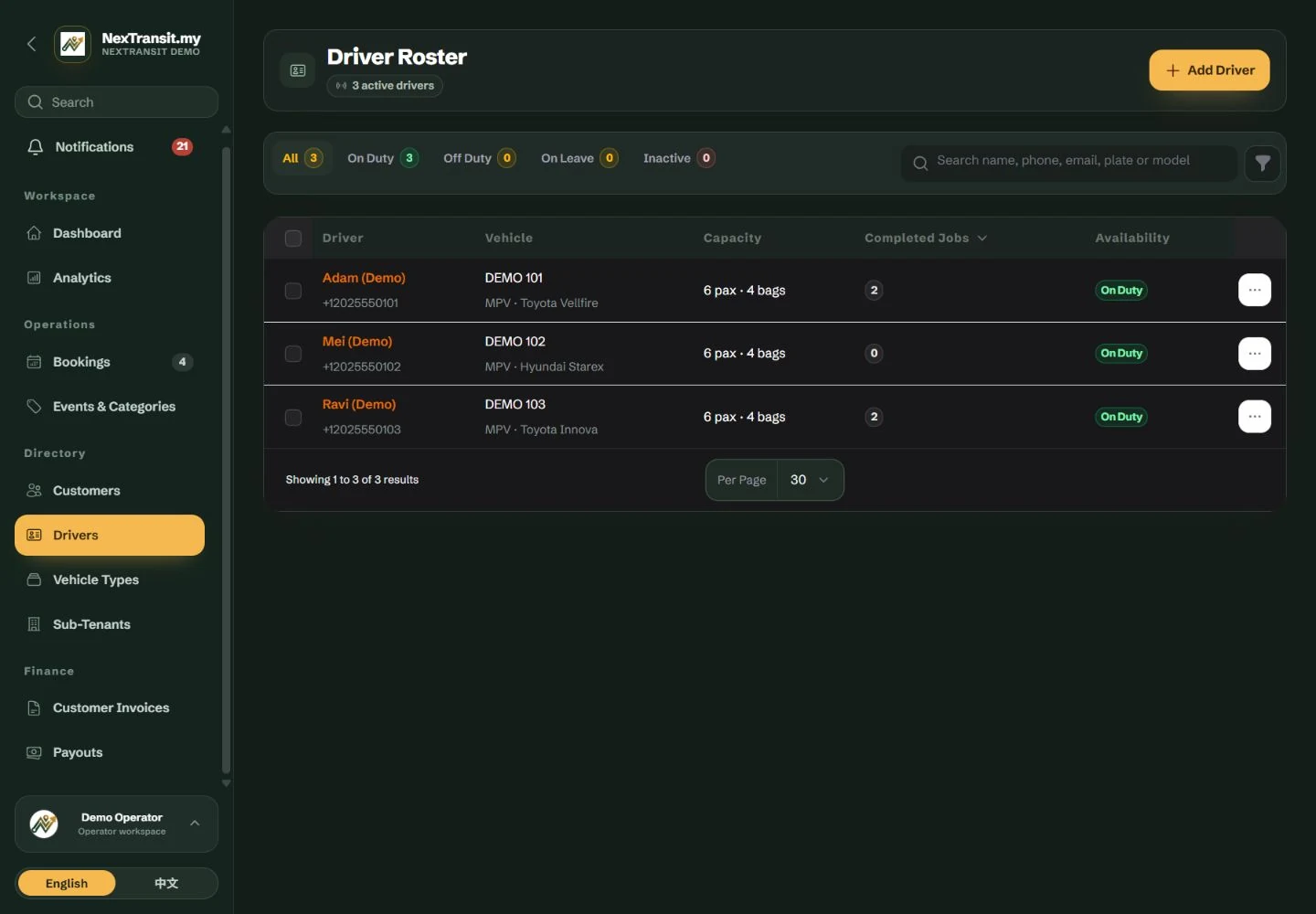
Open Directory → Drivers to reach Driver Roster. Parent operator administrators and staff can manage roster details; sub-tenant users do not have this directory.
Find A Driver
Search by name, phone, email, plate or vehicle model. Open the driver to review their details, Bookings and Time Off.
Choose The Appropriate Tab
All shows the current roster. On Duty and Off Duty describe effective duty now. On Leave includes active drivers with running or upcoming time off, so it can overlap the other duty tabs. Inactive shows accounts whose active switch is off.
Check The Pickup Date
For a future assignment, check the driver's Time Off and the booking's assignment warnings. Today's duty status alone does not establish availability on the pickup date.
Duty and leave indicators support dispatcher decisions. They do not automatically assign, reassign or optimise the schedule.
Add A Driver
Enter Identity And Contact Details
Choose Add Driver. In Identity & Contact, enter Full Name and Phone Number. Add Email Address and Licence Number if required for your records. Local Malaysian phone formatting is accepted and normalised when saved.
Set Duty Status
Leave Active Driver Account enabled if the driver should sign in and receive new assignments. Set Available for Jobs to their current duty state. Use planned Time Off for date-specific absence rather than relying only on this switch.
Describe The Primary Vehicle
In Vehicle & Capacity, complete the primary Vehicle Type, Vehicle Model, Plate Number and Vehicle Colour as appropriate. Check Passenger Capacity and Luggage Capacity against the real vehicle. The initial capacities are four passengers and four bags; replace them when unsuitable.
Complete The Required Fields
If Portal Password is shown, enter a password that meets the displayed requirements before saving the new driver. Tenant Staff do not see this field. When editing an existing driver, a blank password field preserves the saved password.
Save The Driver
Choose Create Driver. Reopen the saved record to check its contact, duty and vehicle details before assigning jobs. When editing later, use Save Driver; Discard Changes leaves the saved record unchanged.
Phone numbers must be valid. The same phone can be shared across driver records, but an optional email address must be unique; an already registered address is rejected.
An inactive driver cannot sign in or receive new assignments. Disabling Available for Jobs changes current duty without deactivating the account.
Manage Multiple Vehicles For One Driver
Enable Vehicle Selection
Edit the driver and turn on Enable Multiple Vehicles. Enter a primary Plate Number before saving this setting.
Add Vehicle Records
Under Additional Vehicles, choose Add Vehicle. Enter each vehicle's plate, model, colour, type and capacities. Keep Available For New Bookings enabled for vehicles the dispatcher may select. Each plate must differ from the other plates on this driver's account.
Save And Assign
Choose Save Driver. When assigning a booking to this driver, select Assigned Vehicle. NexTransit.my saves the chosen vehicle's details with that booking assignment.
Retire A Vehicle
Turn off Available For New Bookings or remove the additional vehicle when it should no longer be selected. Its booking history is retained. Turning off Enable Multiple Vehicles makes new bookings use the primary vehicle and retains the additional records.
Each driver can register up to 10 additional vehicles. Additional-vehicle passenger capacity must be 1–255 and luggage capacity 0–255.
Editing a roster vehicle does not rewrite its saved details on an earlier assignment. Change the booking's assigned vehicle through the allowed assignment workflow when those booking details need to change.
Maintain The Vehicle Type List
Open Vehicle Types
Go to Directory → Vehicle Types. Add a category for the vehicle choices your team uses, rather than creating a category for each individual registration plate.
Set The Type Details
Enter Type Name, Passenger Capacity and Luggage Capacity, then set the display order and Available for Selection. Type names must be unique within your operator workspace. Passenger capacity is 1–255 and luggage capacity is 0–255.
Retire An Old Type
Turn off Available for Selection when a type should disappear from new bookings. Existing records retain the type. If deletion is refused because the type is in use, retire it instead.
A vehicle type describes a category and default capacity. Always check the assigned driver's actual vehicle and capacity before confirming an allocation.
Record And Adjust Time Off
Book An Absence
Open the driver and select Time Off → Book Time Off. Enter First Day Off, Last Day Off, Reason and an optional Note. Both dates are included in the absence, using Kuala Lumpur calendar days.
Review Existing Jobs
After saving, review Jobs in This Window and any clash notification. Open the affected bookings and arrange reassignment before the driver is away. Booking time off does not remove existing assignments.
Correct A Date
Use Edit on the time-off row to correct the period or reason. Operators can record past dates for corrections; the driver's own portal restricts new leave to today or later.
Cancel Or End The Absence
For an upcoming period, use the delete action and confirm Delete It. For a running period, choose End Time Off and End It Today; days already taken remain recorded and the driver returns to the roster from today. Finished time off cannot be erased through this action, but its dates can be corrected with Edit.
A period cannot exceed 90 days or overlap another period for the same driver. A driver can have up to six running or upcoming periods. Last Day Off must not precede First Day Off; the optional note is limited to 120 characters.
Availability on return also depends on the driver's active and current-duty settings.
Archive A Driver Without Losing History
Check Live Assignments First
Review the driver's live jobs and reassign them where appropriate. Archiving does not send a replacement driver or automatically notify the affected people.
Archive The Record
Use Archive Driver from the driver's actions and read the confirmation. The driver loses portal access and disappears from new assignments, while job and payout history is kept.
Restore When Appropriate
Use the archived-record view and Restore action if the driver returns. Review the account's active state, vehicle details and duty settings before assigning new work.
If you archive a driver who still has live jobs, those jobs can appear without a resolved driver in operational and printed views. Reassign them first.
Permanent deletion is refused when bookings or payouts still reference the driver.
Keep Learning
Admin Workspace
Use the NexTransit.my admin workspace to review daily pickups, find bookings, follow driver acceptance and open the operational records available to your role.
Read The GuideBookings
Create and edit passenger bookings, assign drivers, record trip outcomes and prepare customer messages with the NexTransit.my booking workflow.
Read The GuideScreenshots show a demonstration workspace with sample records. Guides reviewed on 31 October 2026. Available actions depend on your role and account permissions.