
Sign In And Find Your Jobs
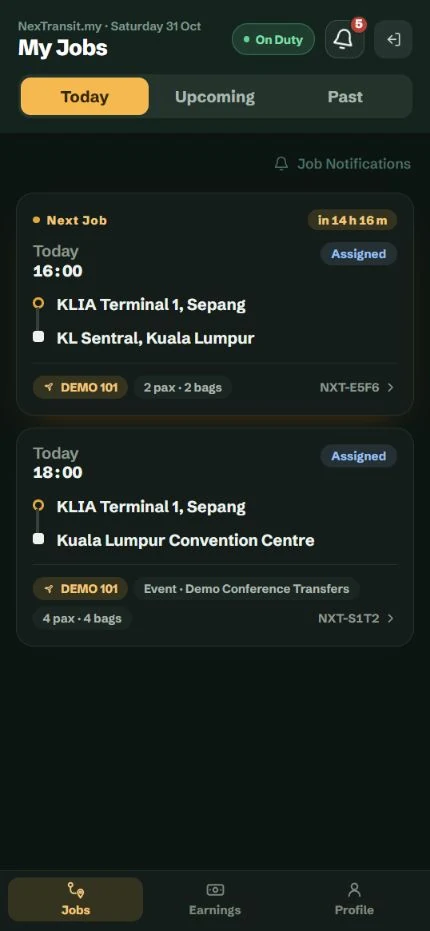
Sign in with your existing driver account. The Jobs list shows the journeys assigned to you.
Open Your Account
Use the private portal access link supplied by your operator, or open Customer Login and sign in with your saved email or phone number and password. Use email if the phone number is shared.
Open Jobs
Use “Jobs” in the bottom navigation. My Jobs opens with Today; switch to Upcoming or Past to view another period.
Choose A Job
Check the pickup time, route and booking reference, then open the job card. Upcoming jobs run soonest first; Past runs newest first.
Completed jobs move to Past immediately, even when their pickup date is today. Past can also contain older unfinished or cancelled jobs, so check the displayed status.
Keep your private access link to yourself. If it expires or no longer works, sign in with your password or ask your operator for a current link.
If no job appears, check Today and Upcoming, then confirm the assignment with your operator.
Review And Accept A Job
Accepting confirms that you have received the assignment. It does not start the trip.
Read The Job Sheet
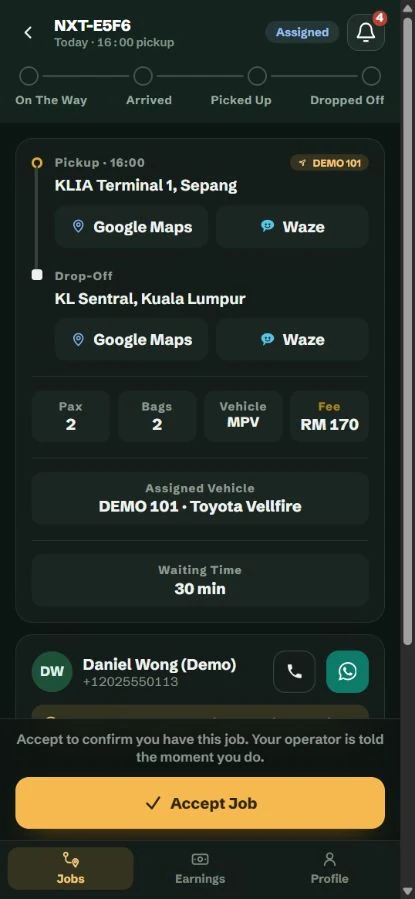
Review pickup and drop-off addresses, pickup time, passenger and luggage counts, vehicle information, notes, flight details where present and your displayed fee. “To Be Confirmed” means the fee has not been set.
Check Contact And Navigation
Use the available call or WhatsApp action for the customer when needed. A Passenger List appears when the booking includes additional passenger details. Navigation links open the pickup or drop-off address in your chosen app.
Accept The Assignment
Select “Accept Job”. The page confirms acceptance and the operator can see that you have acknowledged the job.
You can acknowledge a future assignment before travelling. If the details are wrong or you cannot carry out the job, contact your operator before starting the journey.
Opening the job lets the operator see that it has been viewed. Accept Job records a separate acknowledgement.
Update The Journey
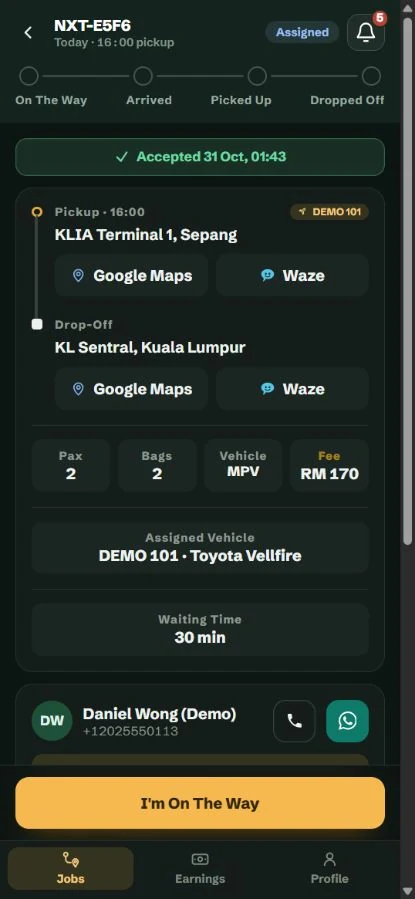
Work through the visible action in order and wait for confirmation after each tap. Make updates only when it is safe to use your phone.
Leave For Pickup
When you set off, select “I'm on the Way”. The job's progress changes to show that you are travelling to pickup.
Confirm Arrival
At the pickup point, select “I've Arrived”. Allow location access if your browser asks so the arrival update can include your position.
Start With The Passenger On Board
Select “Start Trip”. Check that the passengers and luggage are safely inside, then confirm “Yes, Start Trip”. Use “Not Yet” if you are not ready. Starting moves the booking to In Progress.
Complete At Drop-Off
After completing the journey, select “Complete Job” and allow location access. Wait for “Job Completed” before leaving the page.
Once the trip has started, the job cannot be cancelled or reassigned through the normal workflow. Check the correct booking before confirming departure.
Trip stages move forward. Completed and no-show jobs cannot be reopened through this workflow.
Arrival, completion and no-show actions use a location reading at the time of the tap. The portal does not continuously track your journey.
Completion and no-show are blocked more than 12 hours before the scheduled pickup. Accepting an advance assignment is still allowed.
Save Paging Service Proof
Paging Service Proof lets you attach a photo with the GPS position and submission time recorded when you save it. Accept the job first and upload proof before it is finished.
Choose A Photo
On the job sheet, find “Paging Service Proof”. Select “Take Photo” or “Choose Photo”, then review the Photo Preview.
Allow Your Location
Enable your phone's location services and allow the browser to obtain a fresh GPS reading.
Save The Proof
Select “Save Proof” and wait for “Proof saved.” The saved image is stamped with GPS and submission time. Review the saved photo on the job.
Use JPEG, PNG or WebP files up to 10 MB each. A booking accepts a maximum of five proof photos.
The stamp represents the location and time of submission, not proof of when an existing photo was originally taken.
Use Retry Location or Retry Saving Proof when offered. If location is denied, allow it in browser settings. If the session expired, sign in again before saving.
New proof cannot be added after the job is finished, cancelled, reassigned away from you or otherwise unavailable. Saved proof is subject to the displayed retention period.
Handle A No-Show Or Failed Update
Use a final status only after checking the job and following your operator's process.
Confirm A Customer No-Show
If the customer has not appeared, contact the customer or operator as appropriate. Select “Customer No-Show” only when that outcome is confirmed, allow location access and confirm the warning. This cannot be undone.
Recover A Location Problem
If the update asks for location again, tap the action and choose Allow. If the browser stops prompting, enable location for this site in browser settings and retry. Contact the office if you cannot obtain a location update.
Recover A Connection Problem
If an update fails, check your connection and retry. If the message says the journey updated but its confirmation could not be shown, refresh the page and check the current stage before taking another action.
If a job disappears or an action is no longer available, refresh and check with the operator. Its assignment or status may have changed while your page was open.
Review Earnings And Print A Statement
Earnings displays your driver fees from completed jobs. MYR and SGD are shown separately without conversion.
Read Your Totals
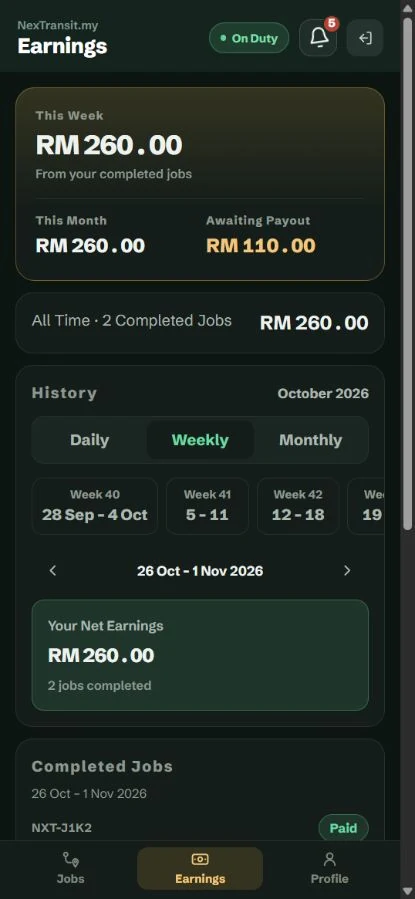
Open “Earnings”. Review This Week, This Month, Awaiting Payout and All Time. Awaiting Payout includes completed fees not yet attached to a paid payout, including fees in pending batches.
Explore A Period
In History, select Daily, Weekly or Monthly and use the period choices or previous/next controls. Review the completed-job count, fees and Paid or Pending state.
Check Payments
Review Payout History for paid payout references, dates, currencies and totals. Ask your operator about an unexpected fee or payment state.
Open A Statement
Under “Printable Statement”, set From and To and select “Open Statement”. Review the details, then select “Print Statement” to use your browser's print options.
The selected history view shows the 20 most recent completed jobs. Use a statement to review the full selected period.
Statements support a period of one year or less and up to 1,000 jobs. Choose a shorter period if the page asks you to narrow it.
A completed job with no driver fee shows “Fee to Be Confirmed”. Completion by itself does not mean payment has been made.
Manage Duty And Time Off
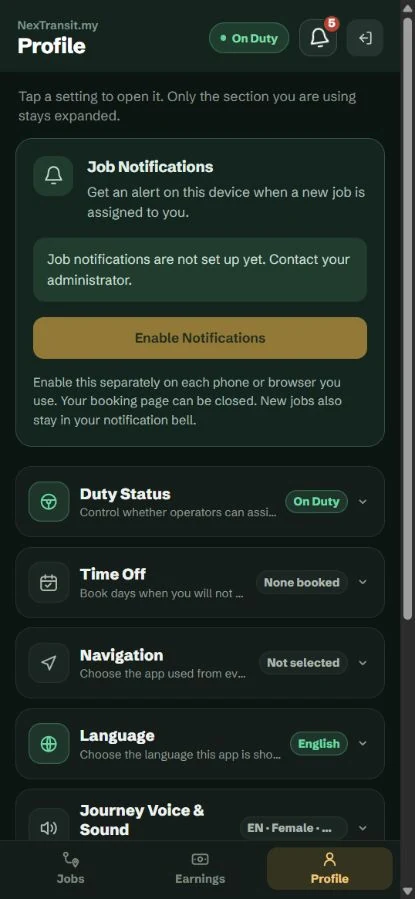
Open Profile to review your availability and record days when you will not be driving.
Set Duty Status
Open “Duty Status” and select “Go Off Duty” or “Go on Duty”. Check the effective status shown in the header. Turning the duty switch on does not cancel an active time-off period.
Book Time Off
Open “Time Off”, enter “First Day Off” and “Last Day Off”, add an optional note and select “Book Time Off”. Choose today or a future start date, up to 90 days per period. Up to six open periods are allowed and they cannot overlap.
Resolve Existing Assignments
If time off overlaps assigned work, contact the operator to arrange reassignment. Booking leave does not automatically move those jobs. Use “Cancel This Time Off” for a future period or “I Am Back — End This Now” to end current leave.
Going off duty or booking time off does not remove existing jobs. Check your assignments and contact the operator when work needs to be reassigned.
If your duty switch remains off when time off ends, you will still be off duty. Check the effective status displayed before returning to work.
Screenshots show a demonstration workspace with sample records. Guides reviewed on 31 October 2026. Available actions depend on your role and account permissions.