
Check Payout Eligibility
Open Finance → Payouts using an account with financial access. Tenant Staff and partner users cannot access driver payouts.
- The booking must be completed, have an assigned driver and have a recorded driver fee.
- A booking already included in a pending or paid payout is not available for another batch.
- Each batch uses one currency. MYR and SGD jobs must be settled separately; no conversion is applied.
- Check the driver's email address before marking payment. The automatic receipt can only be sent when an email address is on file.
Creating a payout does not transfer funds. It prepares a pending record that you confirm separately after making the actual payment.
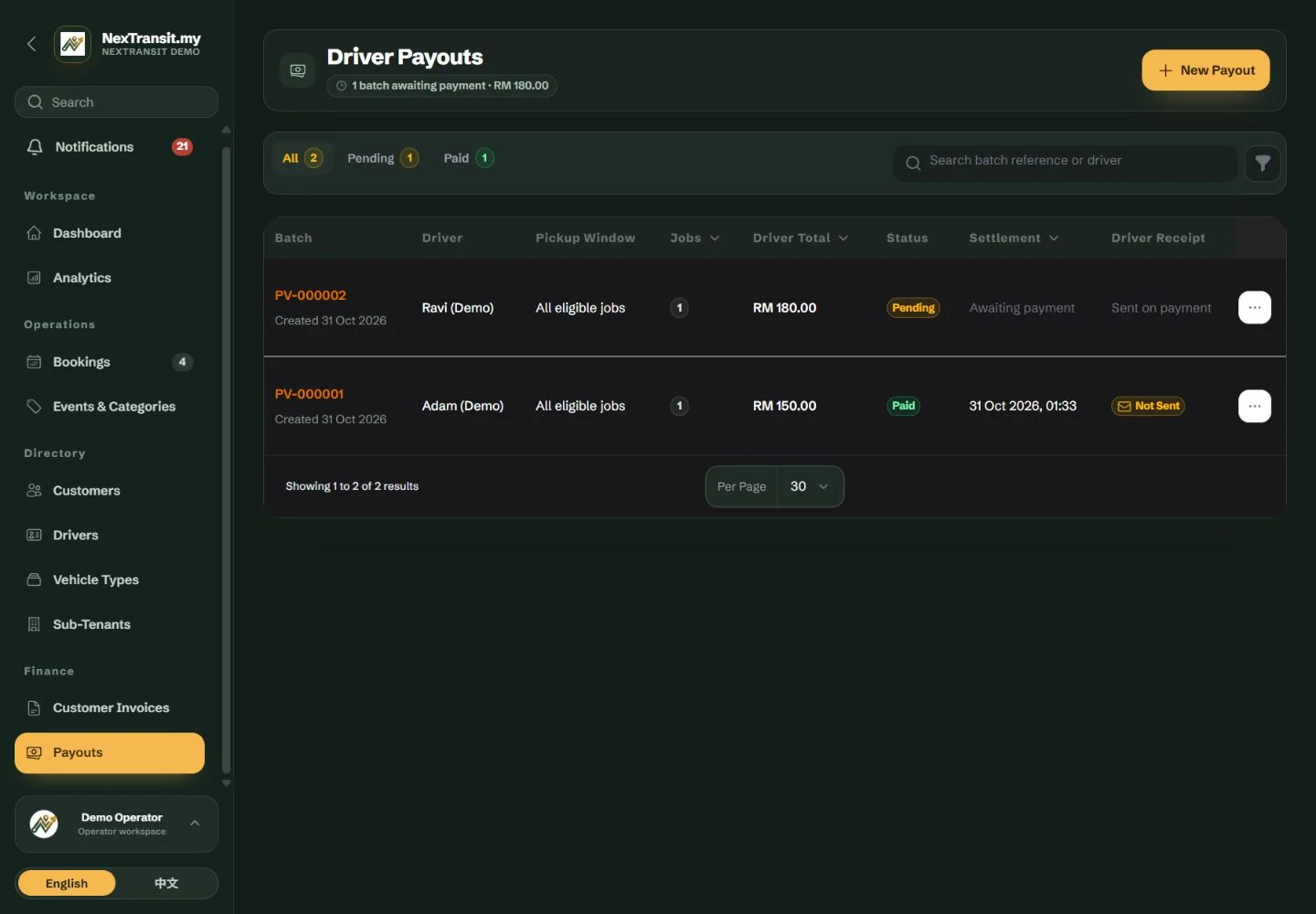
Select Jobs And Create Payouts
New Payout supports an event-wide selection or a single-driver selection. You choose exactly which eligible jobs to include.
Choose A Scope
Select “New Payout”. Choose an event or category to list work across its drivers, or select a driver to review that driver's jobs. At least one of these is required.
Refine The Selection
Choose “Batch Currency”. Optionally use “Driver (Optional)”, “Pickup From” and “Pickup Through”. Dates use Malaysia time and the final date is included. Historical inactive events remain selectable.
Choose The Jobs
In “Event Bookings — Select Who to Pay” or “Jobs to Include in This Payout”, tick the booking cards you intend to pay. Each card identifies its driver and fee. Use “Select all shown jobs” or “Clear selection” when needed.
Review The Batch
Check Selected Jobs, Selected Total, Drivers Selected and Left for Later. Verify the displayed currency and each recipient before proceeding.
Create Pending Records
Select “Create Selected Payouts”. An event selection is grouped into a separate pending payout for each driver. Unticked jobs remain available for a later payout.
The selector supports up to 500 jobs at one time. If more eligible jobs exist, create the displayed selection and review the remaining jobs in a later run.
If selected jobs change or become ineligible while the page is open, refresh and review the selection before retrying.
Review And Confirm Payment
Use the Pending tab to find batches awaiting payment. Search by batch reference or driver, then open the payout voucher.
Review The Voucher
Check the driver, currency, total payable, pickup window and “Jobs in this payout”. Confirm these match the payment you intend to make.
Save A Reference If Needed
While the batch is pending, enter “Bank or transfer reference” and select “Save payment reference”. You can also enter a reference during payment confirmation.
Confirm The Actual Payment
After making and checking the payment, select “Mark as Paid”. Review “Payment Reference” in the confirmation form.
Attach Supporting Evidence
If needed, select “Add receipt attachment” and upload a JPG, PNG, WebP or PDF up to 10 MB in “Receipt Attachment”. The attachment is optional.
Finish The Confirmation
Confirm “Mark as Paid”. The batch moves to Paid, its job amounts are locked, and a receipt email is queued when the driver has an email address on file. Check Driver Receipt for the delivery status.
A paid batch is the payment record. It has no cancel or delete action in this workflow. Review the recipient, amount and currency before confirming.
The payment attachment can be opened through “View receipt” on the voucher when one was supplied.
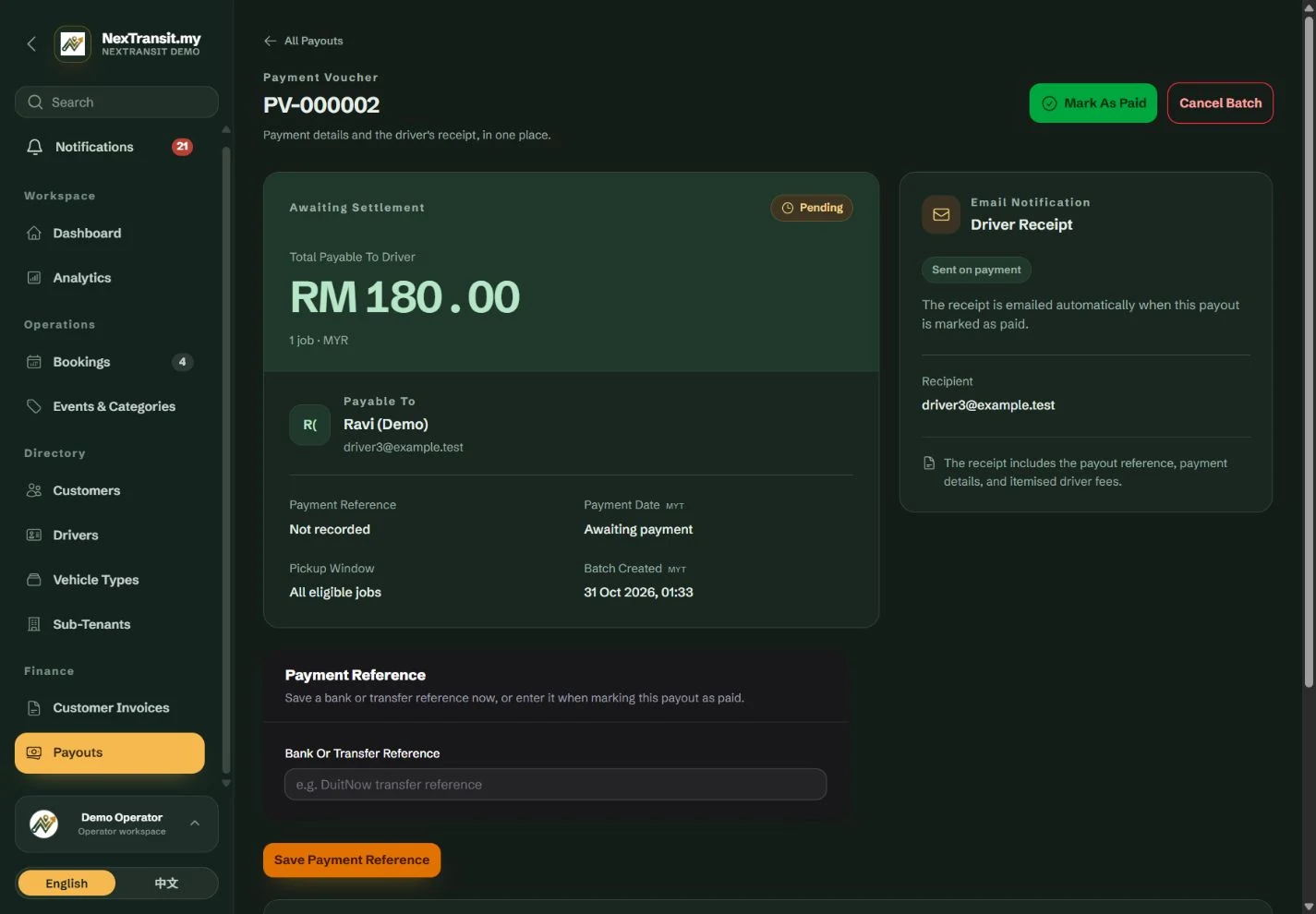
Cancel A Pending Batch
Cancel a pending batch when its job selection is wrong or you need to prepare a different batch.
Open The Pending Payout
Locate the batch under Pending and review its reference, driver and included jobs.
Confirm Cancellation
Select “Cancel Batch” and read the confirmation. The batch and its lines are removed; its bookings unlock and become available for a future payout if they remain eligible.
Rebuild When Ready
Return to New Payout and select the corrected set of jobs.
Cancel Batch is available only while a batch is pending. Cancelling a record does not reverse a bank transfer.
Check And Resend Driver Receipts
The Driver Receipt status shows whether a payment email is queued, sent, failed or unavailable.
Review Receipt Status
Open a paid payout and check Driver Receipt, the recipient and the latest recorded attempt. Refresh a queued receipt to check its progress.
Correct A Missing Address
If “No Email Address” appears, add the correct email address on the driver profile before attempting to send a receipt.
Send Another Copy
Select “Resend Receipt”, review the displayed recipient and confirm “Send Email”. This creates another recorded email attempt.
The receipt includes the payout reference, payment details and itemised driver fees.
Email Failed does not mean the payment record is unpaid. Check the payout's settlement status and the email outcome separately.
Log Expired means the email-attempt log is older than its retention period. It does not undo the paid payout.
Resolve Missing Jobs And Totals
When a job or total is unexpected, check the selection scope before creating another payout.
- No eligible jobs: check completion status, assigned driver, recorded driver fee, currency, event and pickup dates.
- A completed job is missing: check whether it is already in a pending or paid batch. A pending batch must be cancelled before its jobs can be selected elsewhere.
- Jobs appear in another currency: prepare a separate payout in that currency.
- A driver still sees Awaiting Payout: a pending batch is not settled. The driver's amount remains awaiting payment until its payout is marked paid.
Keep Learning
Admin Workspace
Use the NexTransit.my admin workspace to review daily pickups, find bookings, follow driver acceptance and open the operational records available to your role.
Read The GuideBookings
Create and edit passenger bookings, assign drivers, record trip outcomes and prepare customer messages with the NexTransit.my booking workflow.
Read The GuideScreenshots show a demonstration workspace with sample records. Guides reviewed on 31 October 2026. Available actions depend on your role and account permissions.