
Sign In To Your Workspace
Use the account issued for your company. Your role determines the pages and actions available after sign-in.
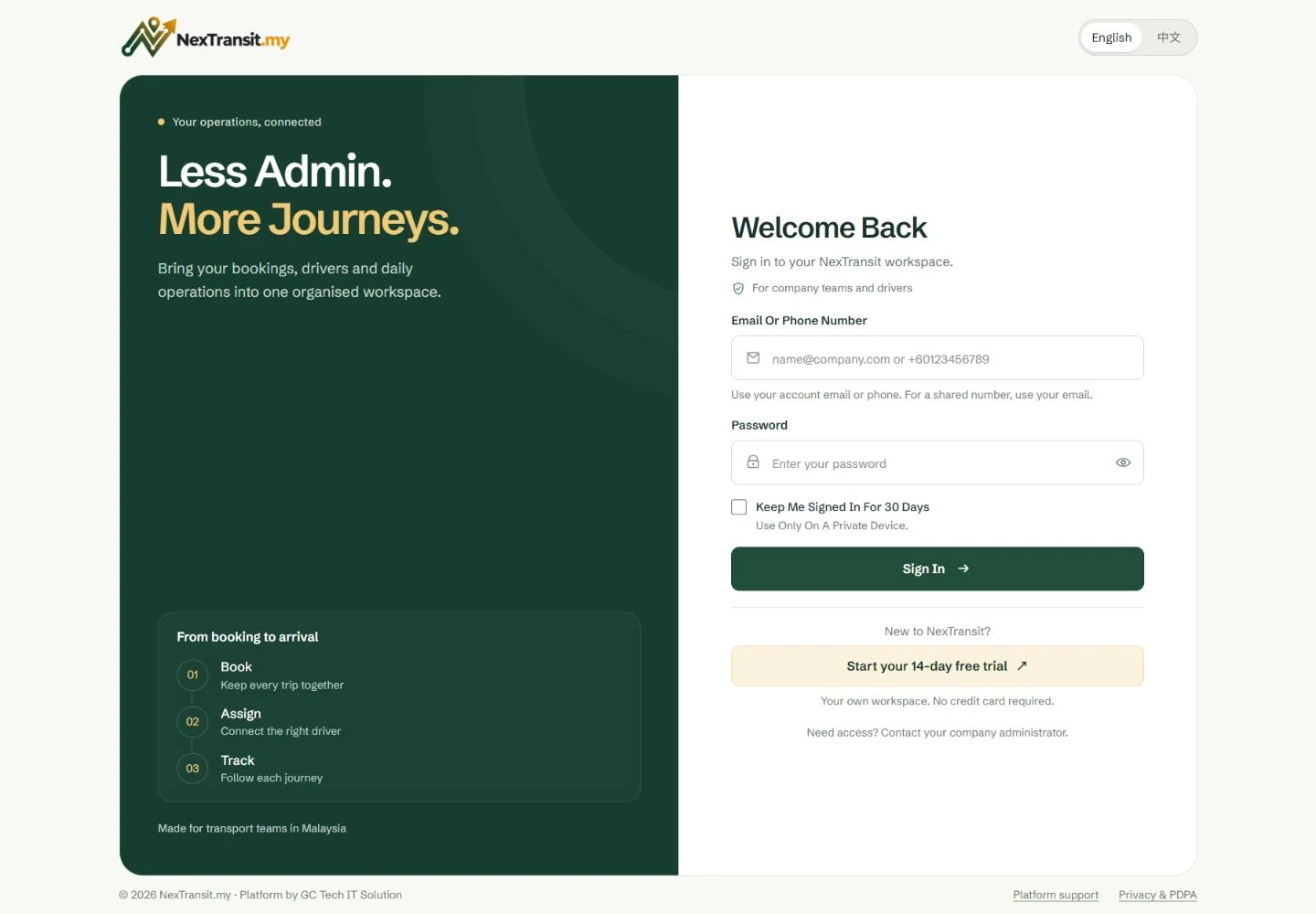
Open Customer Login
Select Customer Login on the NexTransit.my website, or open https://dash.nextransit.my. The application opens its sign-in page.
Enter Your Account Details
Enter the email address or phone number saved on your account in “Email or phone number”, followed by your password. Use your email when a phone number is shared between accounts.
Complete Sign-In
Complete the security check if one appears, then select “Sign in”. Only select “Keep me signed in for 30 days” on a private device.
Check Your Workspace
Company users enter the operator workspace. Partner users open their scoped booking workspace. If your account opens the driver portal, use the Driver Guide for that workspace.
Use your own account so your actions are attributed to you. Keep any private access link issued to you private.
Understand Available Actions
Navigation and available actions follow your role and workspace permissions. A missing menu can be expected for your account.
- Tenant Admin: works with company operations, customer invoices, driver payouts and financial reporting. Partner actions also depend on the company's permissions.
- Tenant Staff: works with operational records and operational analytics. Driver fees, margins and financial-only pages are restricted.
- Partner user: works within the assigned sub-tenant and event access. Booking creation depends on both the partner account and the user's permissions.
If a necessary action is missing, ask your administrator to check your access. Do not use another person’s account to bypass a restriction.
Actions can also depend on the booking’s state. A completed trip does not offer the same actions as a pending booking.
Review Your Daily Overview
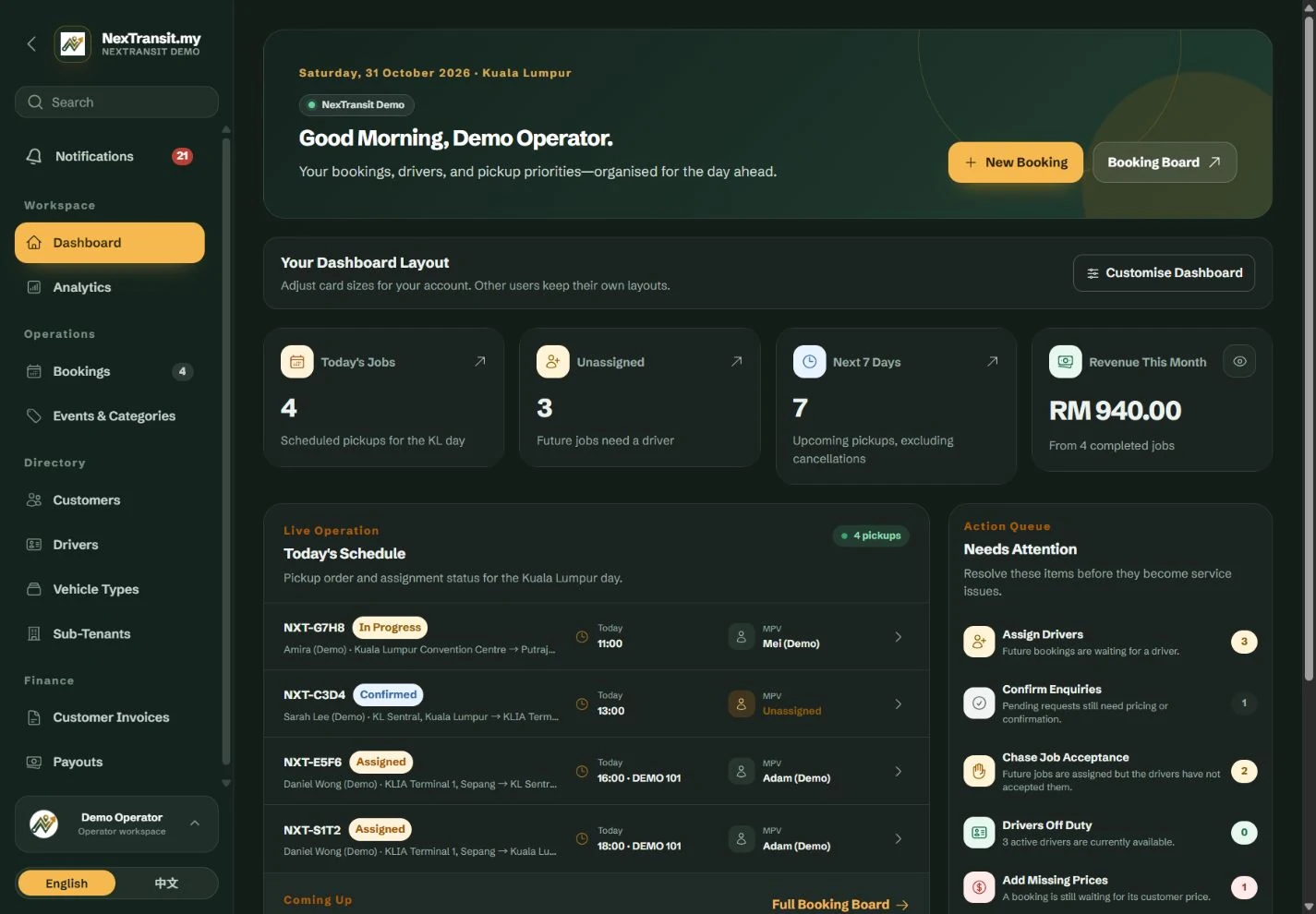
Open Dashboard to see Operations Overview. Use its schedules and attention queue to decide which bookings need action.
Read The Summary
Review Today’s Jobs, Unassigned and Next 7 Days. Pickup times use Kuala Lumpur time. Financial users may also see Revenue This Month, based on completed jobs picked up during the month.
Check Pickup Order
Review Today’s Schedule and Next Pickups. On mobile, use Your Pickups to switch the displayed schedule. Open the relevant job to inspect its route, driver and current status.
Review Outstanding Actions
Use Needs Attention to identify work such as Assign Drivers, Confirm Enquiries and Chase Job Acceptance. On mobile, the queue is labelled To Take Care Of. Financial actions appear only with the required access.
Open The Booking Board
Select Booking Board or Full Booking Board to review the wider list. Use New Booking when you need to record another journey.
A dashboard summary is a starting point. Check the booking’s current status and details before confirming, assigning or changing it.
Partner users open their scoped Bookings page instead of the company Dashboard.
Find The Booking You Need
Open Operations → Bookings to work through the daily list or locate a specific journey.
Choose A Useful Tab
Use Today for the current day, Upcoming for future pickups, Unassigned for jobs needing a driver or Not Accepted for assignments awaiting acknowledgement. All provides the broader list; Cancelled has its own view.
Search Or Filter
Use “Search ref, customer, route…” when you know a booking reference, customer or location. Refine the list using pickup dates, status, driver, vehicle type or event filters as needed.
Review The Record
Open the booking and check its reference, pickup time, contact details, route, driver and status. Distinguish a driver opening the job from accepting it.
Continue The Task
Use the booking’s available action for the work you need to complete. Check the confirmation or result before moving on. Use the Bookings guide for detailed dispatch, editing and lifecycle instructions.
If a record is missing, check the selected tab, filters and search text before widening the list.
Financial tabs and fields are restricted by role. Payment actions record confirmed payments separately from trip progress.
Resolve Access Problems
Start with the message displayed on the sign-in or access page.
- Invalid credentials: check the saved email or phone number and password. Use email if the phone number is shared. Contact your company administrator if you cannot recover access.
- Too many attempts: wait for the indicated retry time before trying again.
- Expired or unusable private link: sign in with your account password or ask the operator for a current link. A regenerated link replaces earlier links.
- Inactive account or unavailable workspace: ask your administrator to check account access and company status.
- Security check does not finish: enable JavaScript, check your connection and reload the sign-in page before retrying.
Keep Learning
Bookings
Create and edit passenger bookings, assign drivers, record trip outcomes and prepare customer messages with the NexTransit.my booking workflow.
Read The GuideImport & Export
Review spreadsheet or text transfers before importing bookings, resolve driver and vehicle warnings, and preview Excel or PDF exports in NexTransit.my.
Read The GuideScreenshots show a demonstration workspace with sample records. Guides reviewed on 31 October 2026. Available actions depend on your role and account permissions.